> ## Documentation Index
> Fetch the complete documentation index at: https://docs.nimbleway.com/llms.txt
> Use this file to discover all available pages before exploring further.
# Claude AI Connectors
> Add Nimble to Claude.ai as a custom connector for real-time web search, extraction, and crawling.
Add Nimble to Claude.ai as a custom connector and Claude can search, extract, map, and crawl the web on its own — no code required.
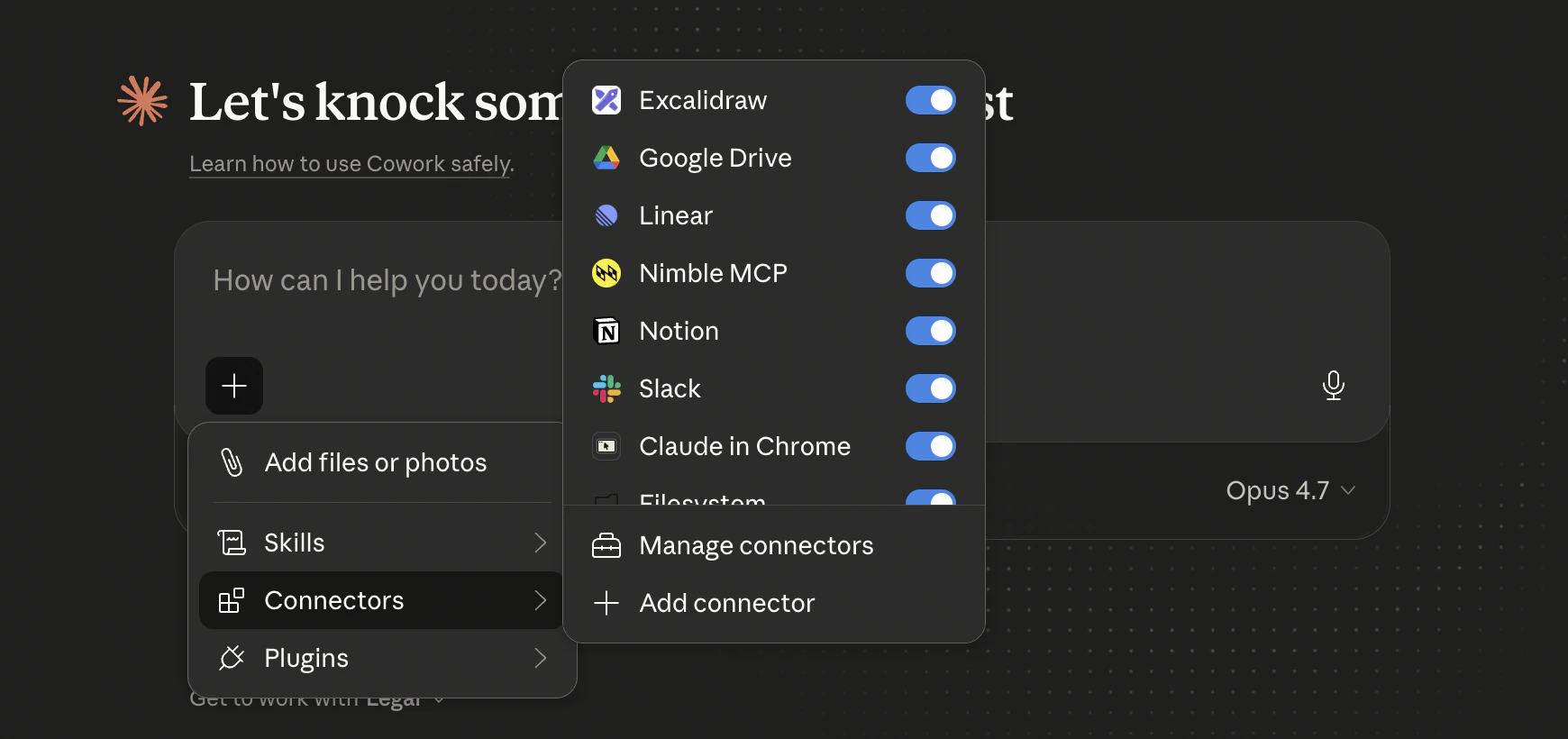 ## Supported Surfaces
Custom connectors work across Anthropic's products:
* **Claude.ai** (web)
* **Claude Desktop** (macOS, Windows)
* **Claude Code**
* **Claude Cowork**
## Prerequisites
* A [Claude.ai](https://claude.ai) account on a plan that supports connectors (Pro, Max, Team, or Enterprise).
* A [Nimble account](https://online.nimbleway.com/signup) — sign in via OAuth during setup. No API key needed.
## Installation
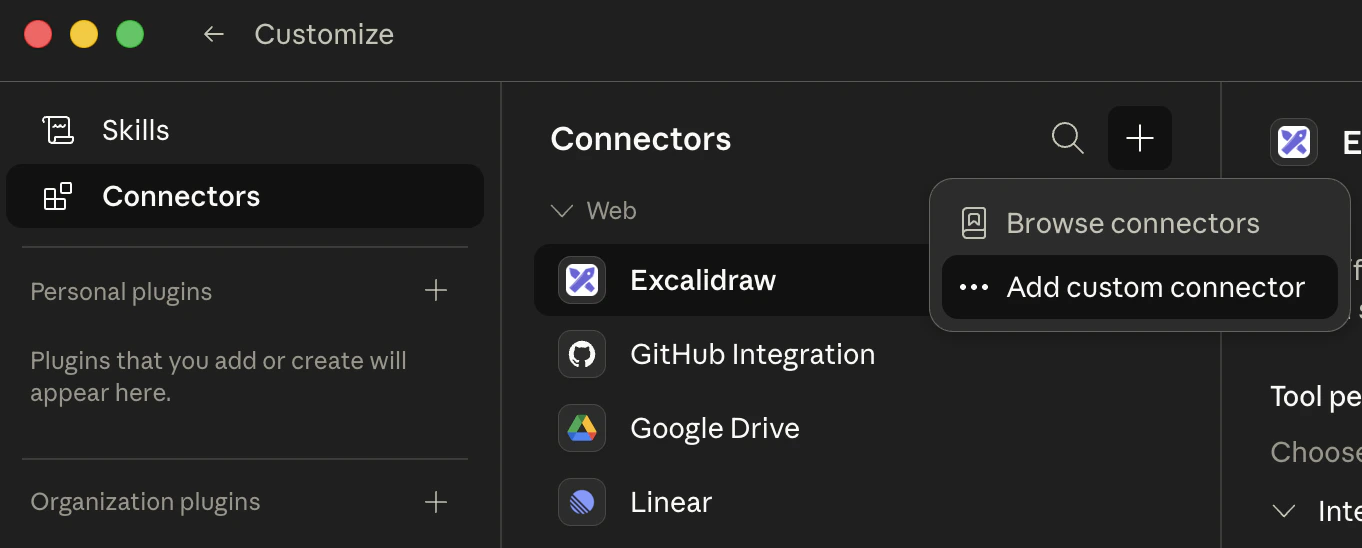
In Claude.ai, navigate to **Customize > Connectors**.
Click the **+** button, then choose **Add custom connector**.
## Supported Surfaces
Custom connectors work across Anthropic's products:
* **Claude.ai** (web)
* **Claude Desktop** (macOS, Windows)
* **Claude Code**
* **Claude Cowork**
## Prerequisites
* A [Claude.ai](https://claude.ai) account on a plan that supports connectors (Pro, Max, Team, or Enterprise).
* A [Nimble account](https://online.nimbleway.com/signup) — sign in via OAuth during setup. No API key needed.
## Installation
In Claude.ai, navigate to **Customize > Connectors**.
Click the **+** button, then choose **Add custom connector**.
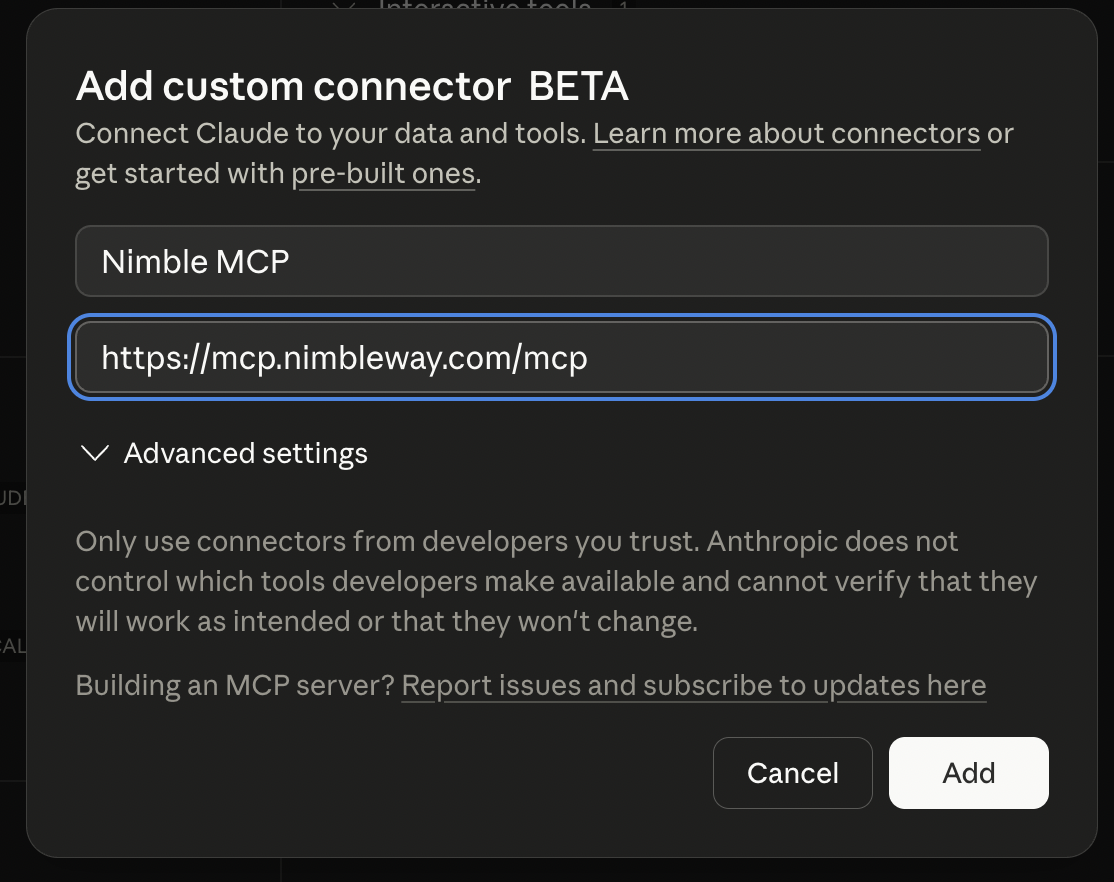
 Give the connector a name (e.g. `Nimble MCP`) and set the remote MCP server URL to:
```
https://mcp.nimbleway.com/mcp
```
Give the connector a name (e.g. `Nimble MCP`) and set the remote MCP server URL to:
```
https://mcp.nimbleway.com/mcp
```
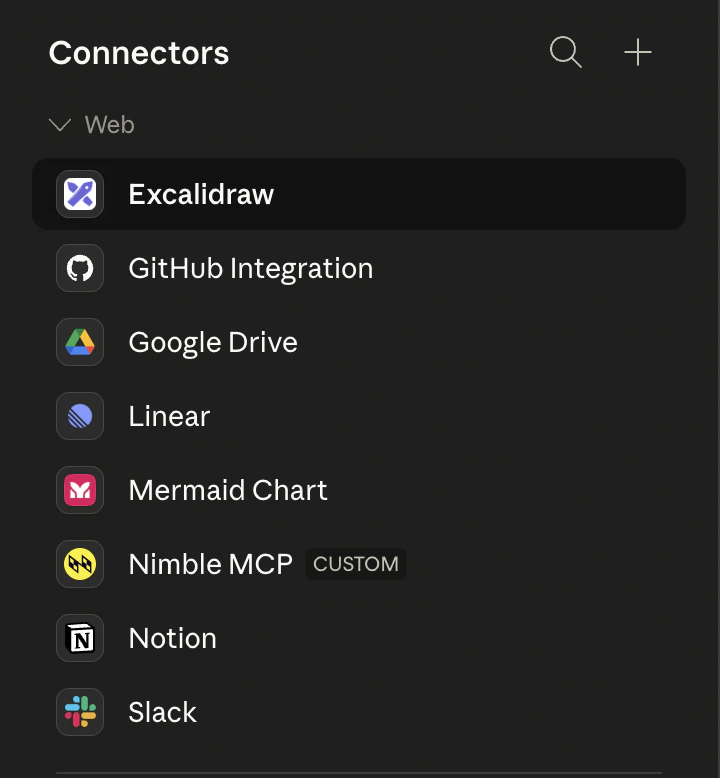
 Click **Add**. The Nimble connector now appears in your connectors list with a `CUSTOM` badge.
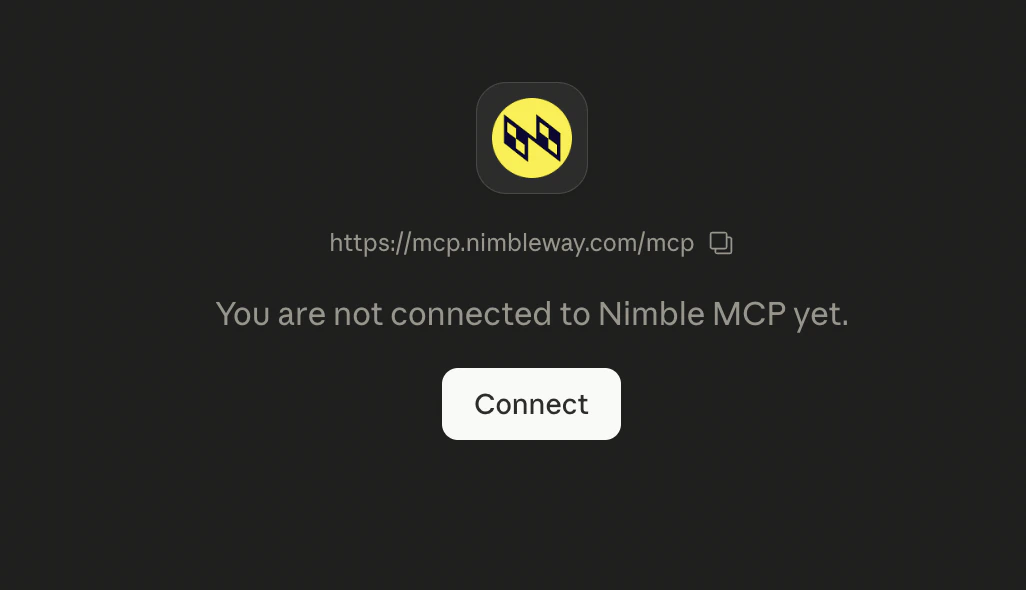
 Open the new **Nimble MCP** connector and click **Connect**.
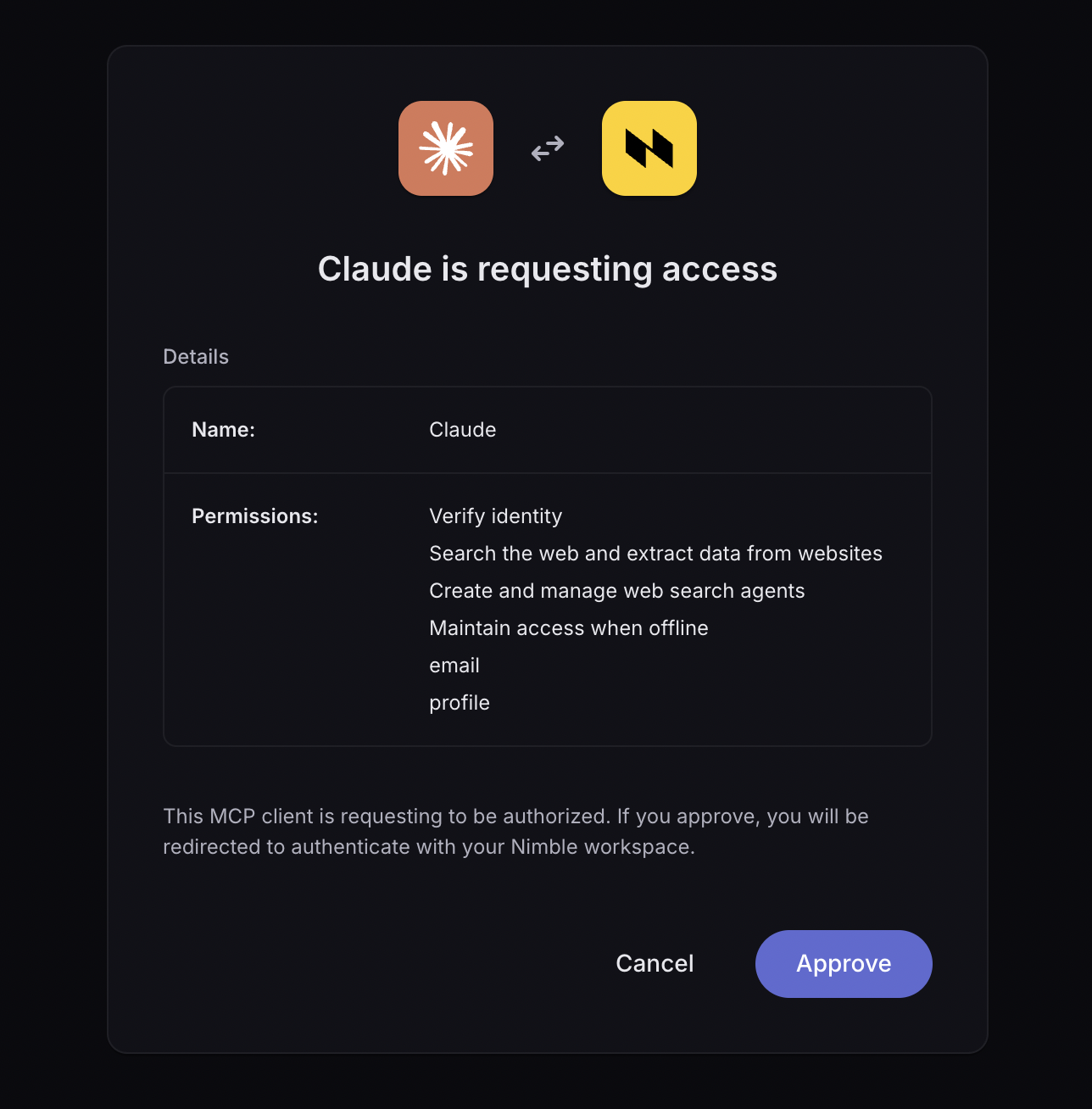
 Review the permissions Claude is requesting and click **Approve** to authenticate with your Nimble workspace. Once approved, the connector is live inside Claude conversations.
 For Anthropic's full reference on custom connectors, see the [Claude support article](https://support.claude.com/en/articles/11175166-get-started-with-custom-connectors-using-remote-mcp).
## Tools
Once connected, Claude calls any of the Nimble MCP server's tools automatically, based on the user's prompt.
| Tool | Use Case |
| ------------------- | ---------------------------------------------------------- |
| `nimble_search` | Web search across multiple engines with configurable depth |
| `nimble_extract` | Pull clean content from any URL |
| `nimble_map` | Discover all URLs on a domain |
| `nimble_crawl` | Crawl an entire site with path filtering |
| `nimble_agents_run` | Run a custom Web Search Agent |
For the full list of MCP tools and parameters, see the [Nimble MCP Server reference](/integrations/mcp-server/mcp-server).
## Power Your Flow with Nimble Agent Skills
Nimble is an **official Anthropic plugin partner**. The Nimble plugin ships in Claude's **Anthropic & Partners** directory and bundles the MCP server with a curated set of agent skills — opinionated workflows that guide Claude through the most common web data jobs (research, scraping, mapping, and crawling) so you get the best of Nimble's Web Tools without writing a prompt from scratch.
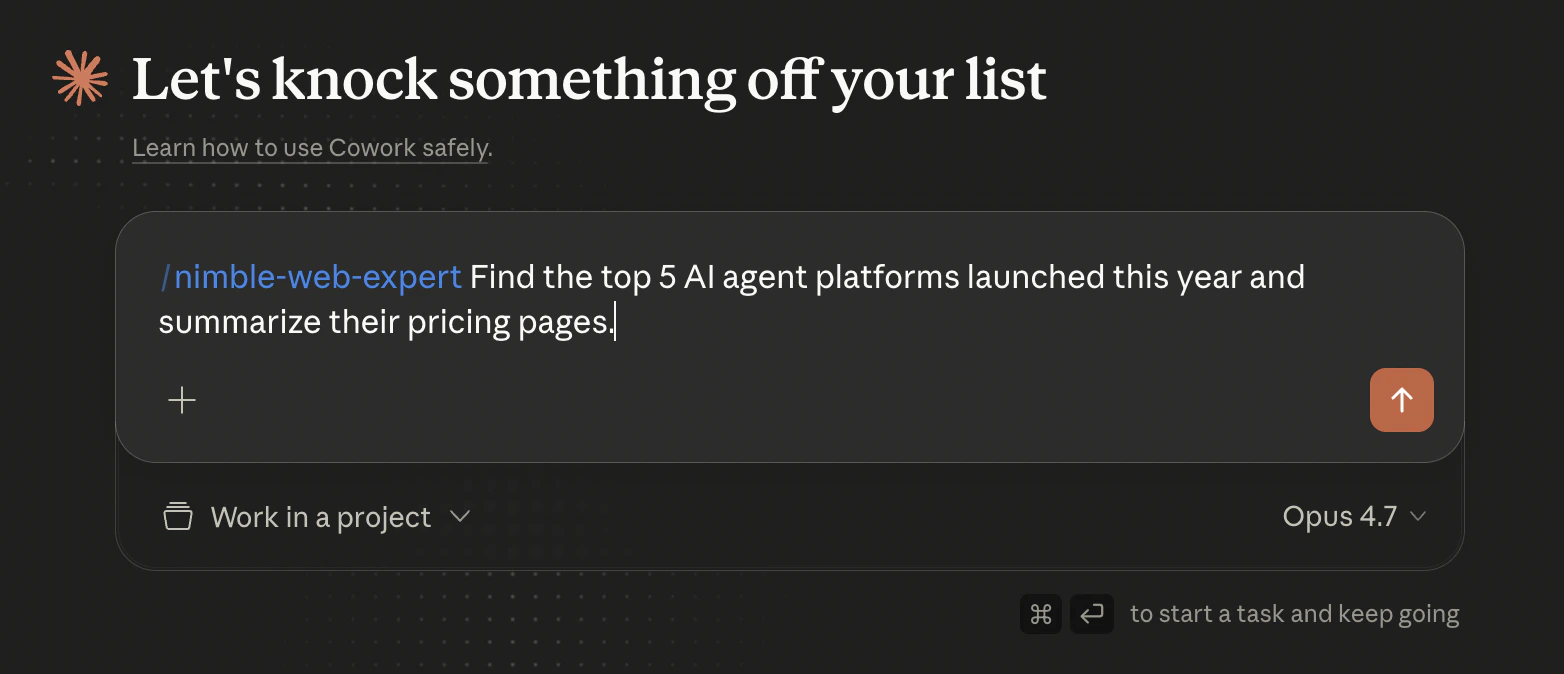
Once installed, just type `/` in any new task to invoke a skill directly:
For Anthropic's full reference on custom connectors, see the [Claude support article](https://support.claude.com/en/articles/11175166-get-started-with-custom-connectors-using-remote-mcp).
## Tools
Once connected, Claude calls any of the Nimble MCP server's tools automatically, based on the user's prompt.
| Tool | Use Case |
| ------------------- | ---------------------------------------------------------- |
| `nimble_search` | Web search across multiple engines with configurable depth |
| `nimble_extract` | Pull clean content from any URL |
| `nimble_map` | Discover all URLs on a domain |
| `nimble_crawl` | Crawl an entire site with path filtering |
| `nimble_agents_run` | Run a custom Web Search Agent |
For the full list of MCP tools and parameters, see the [Nimble MCP Server reference](/integrations/mcp-server/mcp-server).
## Power Your Flow with Nimble Agent Skills
Nimble is an **official Anthropic plugin partner**. The Nimble plugin ships in Claude's **Anthropic & Partners** directory and bundles the MCP server with a curated set of agent skills — opinionated workflows that guide Claude through the most common web data jobs (research, scraping, mapping, and crawling) so you get the best of Nimble's Web Tools without writing a prompt from scratch.
Once installed, just type `/` in any new task to invoke a skill directly:
 ### Install the Nimble plugin
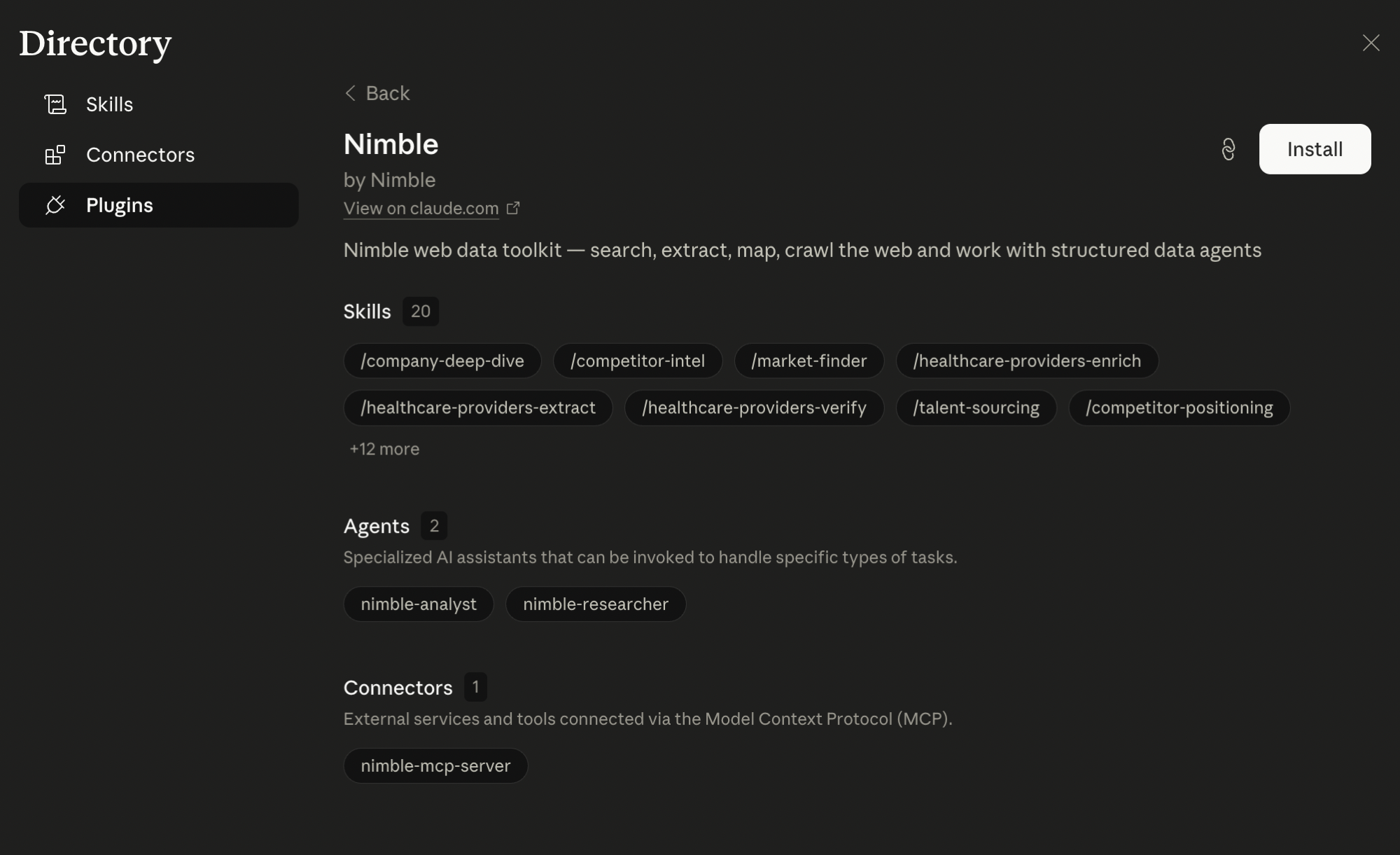
From either the **Cowork** or **Claude Code** tab in Claude Desktop, click **Customize** in the left sidebar, then click **Browse plugins** to open the Directory.
Switch to the **Plugins** tab, select **Anthropic & Partners**, and search for `Nimble`.
### Install the Nimble plugin
From either the **Cowork** or **Claude Code** tab in Claude Desktop, click **Customize** in the left sidebar, then click **Browse plugins** to open the Directory.
Switch to the **Plugins** tab, select **Anthropic & Partners**, and search for `Nimble`.
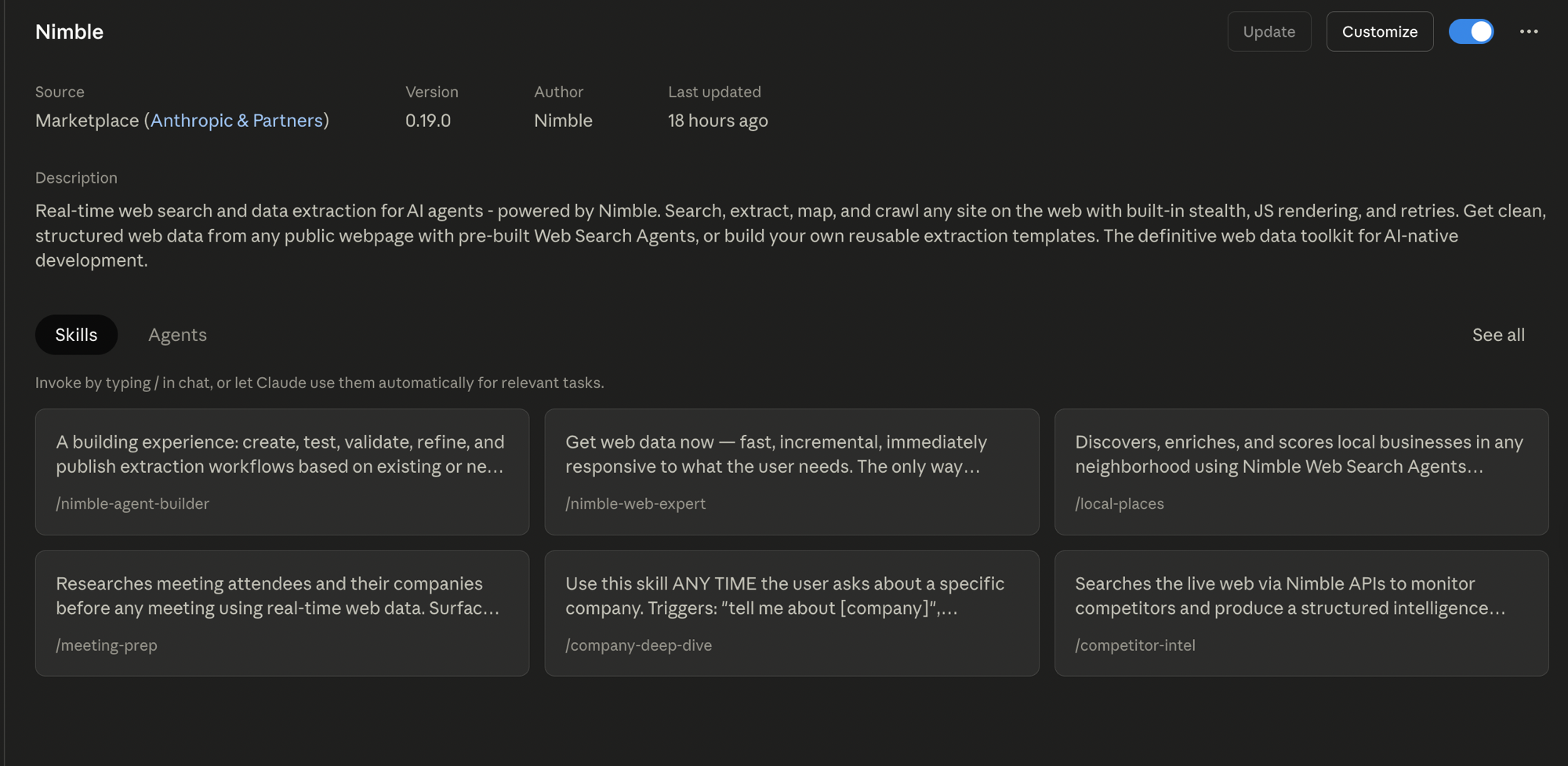
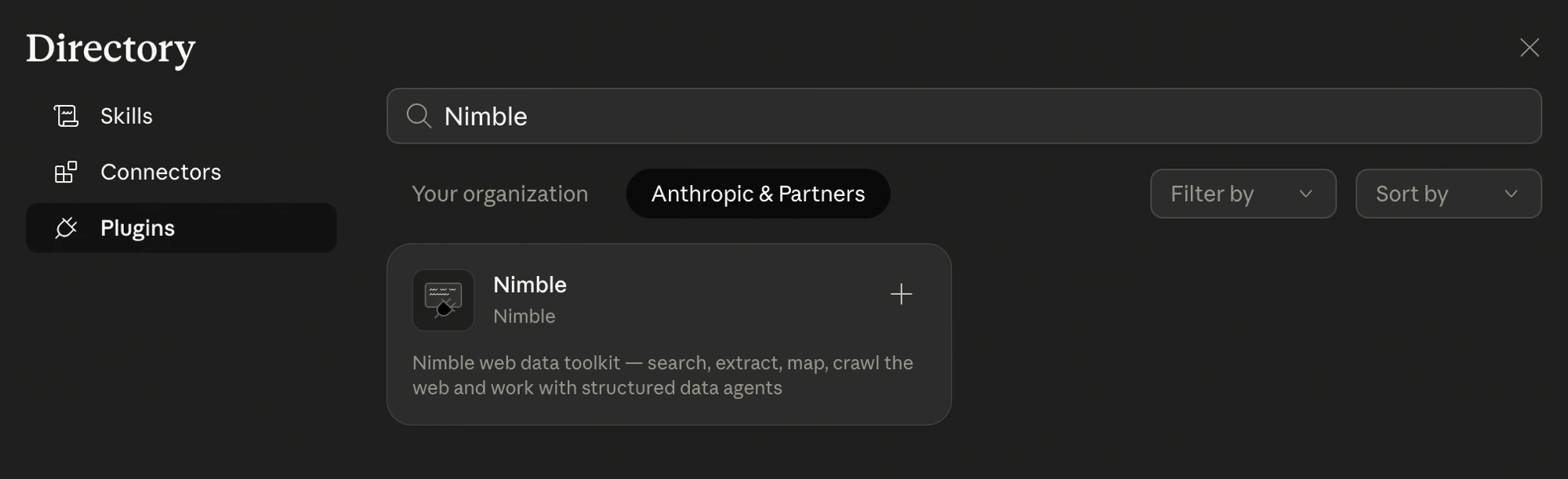 Click the Nimble card to open its details, then click **Install**. The plugin saves locally on your machine and the bundled MCP server, agent skills, and sub-agents register automatically.
 Once installed, Nimble's agent skills are available across your conversations. Type `/` in chat to browse them, or let Claude invoke them automatically based on your prompt.
 For Anthropic's full reference, see [Use plugins in Claude Cowork](https://support.claude.com/en/articles/13837440-use-plugins-in-claude-cowork).
## How It Works
Type a prompt that needs live web data. Claude detects when the Nimble connector can help.
Claude routes the request to the Nimble MCP server, which runs the search, extraction, or crawl in real time.
Results return to the conversation as structured data Claude can quote, cite, or summarize.
## Example Prompts
> *"Find the top 5 AI agent platforms launched this year and summarize their pricing pages."*
Claude calls `nimble_search` for the list, then `nimble_extract` on each pricing page, then summarizes.
> *"Crawl docs.example.com and list every page that mentions 'rate limits.'"*
Claude calls `nimble_crawl` with a path filter, then surfaces matches with URLs.
> *"Pull the headline, author, and publish date from this article: `https://example.com/article`"*
Claude calls `nimble_extract` and returns the structured fields.
> *"Show me every page on nimbleway.com under /blog."*
Claude calls `nimble_map` and lists the discovered URLs.
## Next Steps
Full MCP server reference — Cursor, Claude Code, and Claude Desktop setup
Use Nimble as a tool inside the Anthropic SDK in Python or Node
Web search with depth levels, filtering, and AI answers
Extract clean content from any URL
For Anthropic's full reference, see [Use plugins in Claude Cowork](https://support.claude.com/en/articles/13837440-use-plugins-in-claude-cowork).
## How It Works
Type a prompt that needs live web data. Claude detects when the Nimble connector can help.
Claude routes the request to the Nimble MCP server, which runs the search, extraction, or crawl in real time.
Results return to the conversation as structured data Claude can quote, cite, or summarize.
## Example Prompts
> *"Find the top 5 AI agent platforms launched this year and summarize their pricing pages."*
Claude calls `nimble_search` for the list, then `nimble_extract` on each pricing page, then summarizes.
> *"Crawl docs.example.com and list every page that mentions 'rate limits.'"*
Claude calls `nimble_crawl` with a path filter, then surfaces matches with URLs.
> *"Pull the headline, author, and publish date from this article: `https://example.com/article`"*
Claude calls `nimble_extract` and returns the structured fields.
> *"Show me every page on nimbleway.com under /blog."*
Claude calls `nimble_map` and lists the discovered URLs.
## Next Steps
Full MCP server reference — Cursor, Claude Code, and Claude Desktop setup
Use Nimble as a tool inside the Anthropic SDK in Python or Node
Web search with depth levels, filtering, and AI answers
Extract clean content from any URL