> ## Documentation Index
> Fetch the complete documentation index at: https://docs.nimbleway.com/llms.txt
> Use this file to discover all available pages before exploring further.
# Nimble Native App
> Install the Nimble Native App from Snowflake Marketplace, connect your API key inside Snowflake, and call live web search from SQL.
Install the Nimble Native App from the Snowflake Marketplace and call live web search and AI-synthesized answers from any worksheet, pipeline, or Snowflake Intelligence agent. The app runs inside your account. Your Nimble API key stays in a Snowflake Secret you control.
## What you get
* **`CORE.NIMBLE_SEARCH` and `CORE.NIMBLE_ANSWER` as stored procedures.** Ranked web results as a `VARIANT`, or a single sourced answer string.
* **One-click install** from the Snowflake Marketplace. No code to copy.
* **A guided setup app.** A built-in Streamlit screen walks you through connecting your key and creating the procedures.
* **Your key never leaves your account.** The app reads it from a Snowflake Secret at call time. Only authorized outbound calls reach Nimble.
## Prerequisites
* `ACCOUNTADMIN` role (or a role with `CREATE APPLICATION` and the ability to create secrets, network rules, and external access integrations)
* A warehouse to run statements (any size; `XSMALL` is fine)
* A Nimble API key ([sign up free](https://online.nimbleway.com/signup), then copy it from [API keys](https://online.nimbleway.com/account-settings/api-keys))
## Install from Marketplace
Open the [Nimble Search listing on the Snowflake Marketplace](https://app.snowflake.com/marketplace/listing/GZTSZ2BEO2R/nimble-nimble-search).
 In Snowsight, go to **Data Products → Marketplace** and search for **Nimble Search**, or open the [listing](https://app.snowflake.com/marketplace/listing/GZTSZ2BEO2R/nimble-nimble-search) directly.
Click **Get**. Choose the database name the app installs into (the default is fine) and the role allowed to use it, then confirm. Snowflake installs the application into your account.
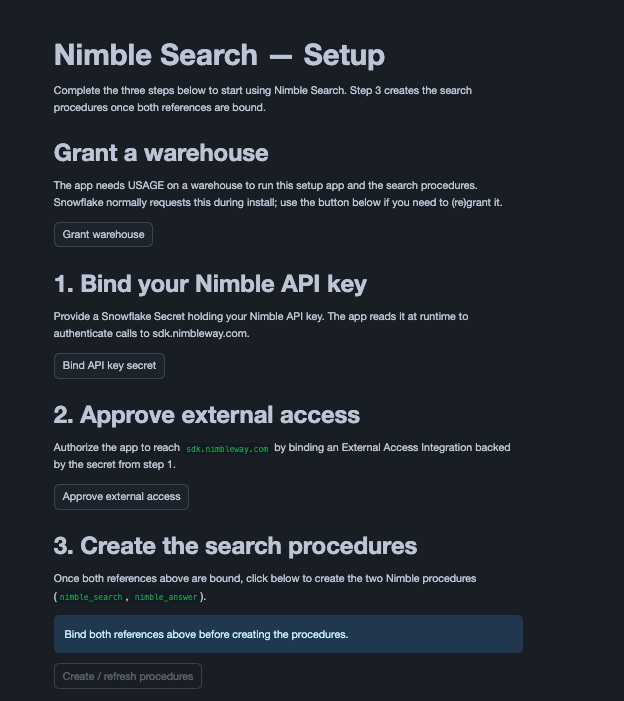
From **Data Products → Apps**, open **Nimble Search**. The setup screen lists three steps: connect your API key, approve external access, and create the procedures. The next two sections cover each.
In Snowsight, go to **Data Products → Marketplace** and search for **Nimble Search**, or open the [listing](https://app.snowflake.com/marketplace/listing/GZTSZ2BEO2R/nimble-nimble-search) directly.
Click **Get**. Choose the database name the app installs into (the default is fine) and the role allowed to use it, then confirm. Snowflake installs the application into your account.
From **Data Products → Apps**, open **Nimble Search**. The setup screen lists three steps: connect your API key, approve external access, and create the procedures. The next two sections cover each.
 ## Connect your Nimble API key
The app reads your key from a Snowflake **Secret** through a reference, so the key is never embedded in the app. Create the Secret once, then bind it.
Run this in a worksheet, in any database and schema you own (outside the app). Paste your Nimble API key in place of the placeholder.
```sql theme={"system"}
CREATE DATABASE IF NOT EXISTS nimble_integration;
CREATE SCHEMA IF NOT EXISTS nimble_integration.tools;
CREATE OR REPLACE SECRET nimble_integration.tools.nimble_api_key
TYPE = GENERIC_STRING
SECRET_STRING = 'YOUR_NIMBLE_API_KEY';
```
Create a network rule and an External Access Integration so the app can reach `sdk.nimbleway.com`. These are account-level objects, so they live outside the app.
```sql theme={"system"}
CREATE OR REPLACE NETWORK RULE nimble_integration.tools.nimble_api_rule
MODE = EGRESS
TYPE = HOST_PORT
VALUE_LIST = ('sdk.nimbleway.com');
CREATE OR REPLACE EXTERNAL ACCESS INTEGRATION nimble_api_access
ALLOWED_NETWORK_RULES = (nimble_integration.tools.nimble_api_rule)
ALLOWED_AUTHENTICATION_SECRETS = (nimble_integration.tools.nimble_api_key)
ENABLED = TRUE;
```
Back in the **Nimble Search** setup app:
* Click **Bind API key secret** and select `nimble_integration.tools.nimble_api_key`.
* Click **Approve external access** and select `nimble_api_access`.
Each opens a Snowflake dialog that grants the app scoped access to that one object.
Click **Create / refresh procedures**. This creates `CORE.NIMBLE_SEARCH` and `CORE.NIMBLE_ANSWER` with the references you just bound. When it returns `ok`, the app is ready.
Prefer SQL over the setup screen? See [Set up with SQL](#set-up-with-sql) below for the equivalent statements.
## Run it
Replace `nimble_search` with the database name you chose at install if it differs.
### Get a direct answer
`NIMBLE_ANSWER` returns a single sourced answer string. It is the right shape for a Snowflake Intelligence agent tool.
```sql theme={"system"}
CALL nimble_search.core.nimble_answer('what is the capital of France?');
```
### Search the web
`NIMBLE_SEARCH` returns a `VARIANT` with `results`, `request_id`, and `total_results`. The arguments are the query, the maximum number of results, and the search depth (`'lite'` or `'deep'`).
```sql theme={"system"}
CALL nimble_search.core.nimble_search('latest AI news', 5, 'lite');
```
### Flatten results into rows
Run the search, then read its output with `RESULT_SCAN` and `FLATTEN` to get one row per result.
```sql theme={"system"}
CALL nimble_search.core.nimble_search('best espresso machine 2026', 5, 'lite');
SELECT v.value:title::STRING AS title,
v.value:url::STRING AS url,
v.value:description::STRING AS description,
v.value:metadata:position::INT AS position
FROM TABLE(RESULT_SCAN(LAST_QUERY_ID())),
LATERAL FLATTEN(input => $1:results) v
ORDER BY position;
```
### Use the answer as a Cortex Agent tool
`CORE.NIMBLE_ANSWER(VARCHAR)` returns a single `STRING`, so it registers cleanly as a Cortex Agent tool. In Snowsight, go to **AI & ML → Agents → your agent → Tools → Add tool** and point it at `nimble_search.core.nimble_answer`. The agent can then pull live web context into its answers.
## Set up with SQL
The setup screen is the fastest path, but every step has a SQL equivalent. After creating the Secret and External Access Integration (the two blocks above), bind the references and create the procedures directly.
```sql theme={"system"}
CALL nimble_search.config.register_reference(
'nimble_api_key', 'ADD',
SYSTEM$REFERENCE('SECRET','NIMBLE_INTEGRATION.TOOLS.NIMBLE_API_KEY','PERSISTENT','READ'));
CALL nimble_search.config.register_reference(
'nimble_external_access', 'ADD',
SYSTEM$REFERENCE('EXTERNAL_ACCESS_INTEGRATION','NIMBLE_API_ACCESS','PERSISTENT','USAGE'));
CALL nimble_search.core.create_eai_objects();
```
Both `register_reference` calls return `ok`, and `create_eai_objects` returns `ok` once the procedures exist.
## Uninstall
```sql theme={"system"}
DROP APPLICATION nimble_search CASCADE;
```
The Secret, network rule, and External Access Integration you created are not owned by the app and remain in your account.
## Resources
Request shape, parameters, and response schema behind `NIMBLE_SEARCH`
Wire Nimble tools into a Cortex Agent for Snowflake Intelligence
How Snowflake installs and runs apps inside a consumer account
How Snowflake gates outbound HTTPS from app procedures
## Connect your Nimble API key
The app reads your key from a Snowflake **Secret** through a reference, so the key is never embedded in the app. Create the Secret once, then bind it.
Run this in a worksheet, in any database and schema you own (outside the app). Paste your Nimble API key in place of the placeholder.
```sql theme={"system"}
CREATE DATABASE IF NOT EXISTS nimble_integration;
CREATE SCHEMA IF NOT EXISTS nimble_integration.tools;
CREATE OR REPLACE SECRET nimble_integration.tools.nimble_api_key
TYPE = GENERIC_STRING
SECRET_STRING = 'YOUR_NIMBLE_API_KEY';
```
Create a network rule and an External Access Integration so the app can reach `sdk.nimbleway.com`. These are account-level objects, so they live outside the app.
```sql theme={"system"}
CREATE OR REPLACE NETWORK RULE nimble_integration.tools.nimble_api_rule
MODE = EGRESS
TYPE = HOST_PORT
VALUE_LIST = ('sdk.nimbleway.com');
CREATE OR REPLACE EXTERNAL ACCESS INTEGRATION nimble_api_access
ALLOWED_NETWORK_RULES = (nimble_integration.tools.nimble_api_rule)
ALLOWED_AUTHENTICATION_SECRETS = (nimble_integration.tools.nimble_api_key)
ENABLED = TRUE;
```
Back in the **Nimble Search** setup app:
* Click **Bind API key secret** and select `nimble_integration.tools.nimble_api_key`.
* Click **Approve external access** and select `nimble_api_access`.
Each opens a Snowflake dialog that grants the app scoped access to that one object.
Click **Create / refresh procedures**. This creates `CORE.NIMBLE_SEARCH` and `CORE.NIMBLE_ANSWER` with the references you just bound. When it returns `ok`, the app is ready.
Prefer SQL over the setup screen? See [Set up with SQL](#set-up-with-sql) below for the equivalent statements.
## Run it
Replace `nimble_search` with the database name you chose at install if it differs.
### Get a direct answer
`NIMBLE_ANSWER` returns a single sourced answer string. It is the right shape for a Snowflake Intelligence agent tool.
```sql theme={"system"}
CALL nimble_search.core.nimble_answer('what is the capital of France?');
```
### Search the web
`NIMBLE_SEARCH` returns a `VARIANT` with `results`, `request_id`, and `total_results`. The arguments are the query, the maximum number of results, and the search depth (`'lite'` or `'deep'`).
```sql theme={"system"}
CALL nimble_search.core.nimble_search('latest AI news', 5, 'lite');
```
### Flatten results into rows
Run the search, then read its output with `RESULT_SCAN` and `FLATTEN` to get one row per result.
```sql theme={"system"}
CALL nimble_search.core.nimble_search('best espresso machine 2026', 5, 'lite');
SELECT v.value:title::STRING AS title,
v.value:url::STRING AS url,
v.value:description::STRING AS description,
v.value:metadata:position::INT AS position
FROM TABLE(RESULT_SCAN(LAST_QUERY_ID())),
LATERAL FLATTEN(input => $1:results) v
ORDER BY position;
```
### Use the answer as a Cortex Agent tool
`CORE.NIMBLE_ANSWER(VARCHAR)` returns a single `STRING`, so it registers cleanly as a Cortex Agent tool. In Snowsight, go to **AI & ML → Agents → your agent → Tools → Add tool** and point it at `nimble_search.core.nimble_answer`. The agent can then pull live web context into its answers.
## Set up with SQL
The setup screen is the fastest path, but every step has a SQL equivalent. After creating the Secret and External Access Integration (the two blocks above), bind the references and create the procedures directly.
```sql theme={"system"}
CALL nimble_search.config.register_reference(
'nimble_api_key', 'ADD',
SYSTEM$REFERENCE('SECRET','NIMBLE_INTEGRATION.TOOLS.NIMBLE_API_KEY','PERSISTENT','READ'));
CALL nimble_search.config.register_reference(
'nimble_external_access', 'ADD',
SYSTEM$REFERENCE('EXTERNAL_ACCESS_INTEGRATION','NIMBLE_API_ACCESS','PERSISTENT','USAGE'));
CALL nimble_search.core.create_eai_objects();
```
Both `register_reference` calls return `ok`, and `create_eai_objects` returns `ok` once the procedures exist.
## Uninstall
```sql theme={"system"}
DROP APPLICATION nimble_search CASCADE;
```
The Secret, network rule, and External Access Integration you created are not owned by the app and remain in your account.
## Resources
Request shape, parameters, and response schema behind `NIMBLE_SEARCH`
Wire Nimble tools into a Cortex Agent for Snowflake Intelligence
How Snowflake installs and runs apps inside a consumer account
How Snowflake gates outbound HTTPS from app procedures