> ## Documentation Index
> Fetch the complete documentation index at: https://docs.nimbleway.com/llms.txt
> Use this file to discover all available pages before exploring further.
# Account Management
> Manage API keys and collaborate with your team
Manage your Nimble account settings, generate API keys, and collaborate with team members all from one centralized dashboard.
## Accessing Account Settings
Navigate to your account settings at [online.nimbleway.com](https://online.nimbleway.com):
1. Log in with your username and password
2. Click on your profile or settings icon
3. Select **Account Settings** from the menu
***
## API Keys
API keys are used to authenticate your requests to the Nimble API. Each key is unique and should be kept secure.
### Generate Your First API Key
In Account Settings, click on the **API Keys** tab
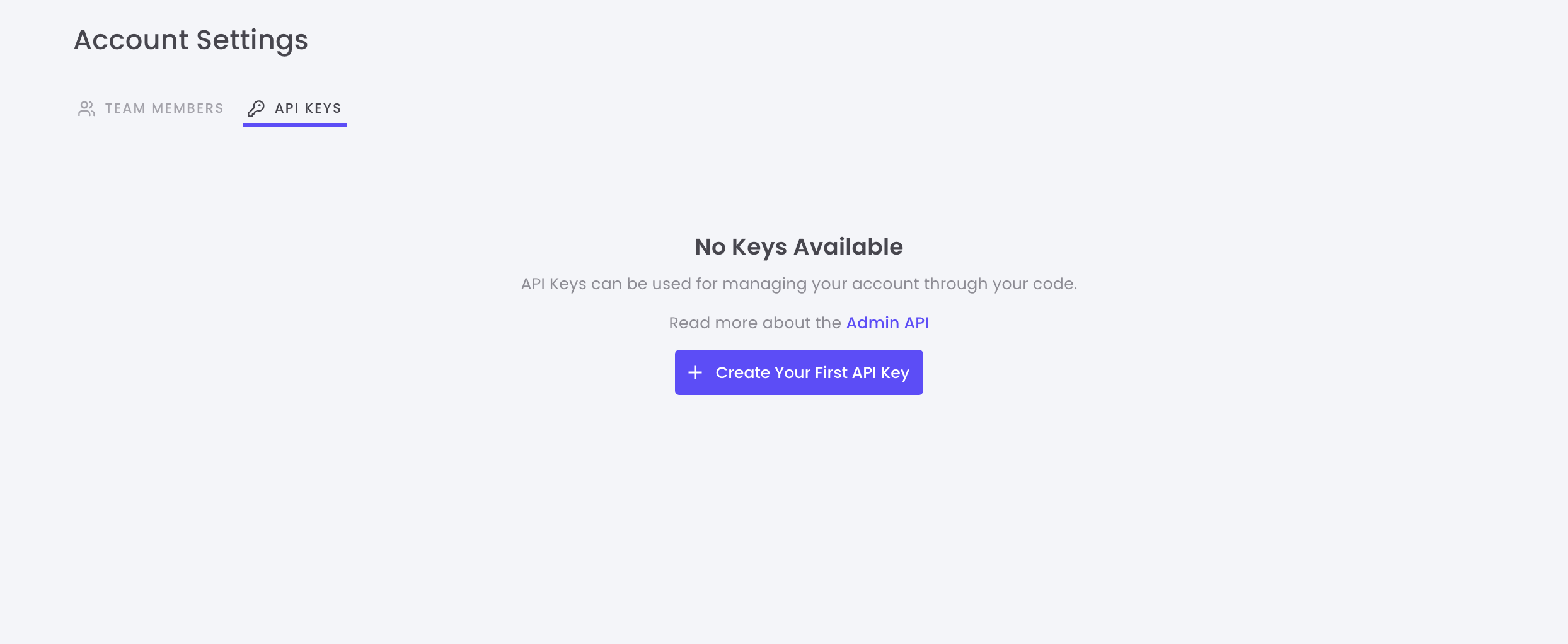 Click the **Create New API Key** button
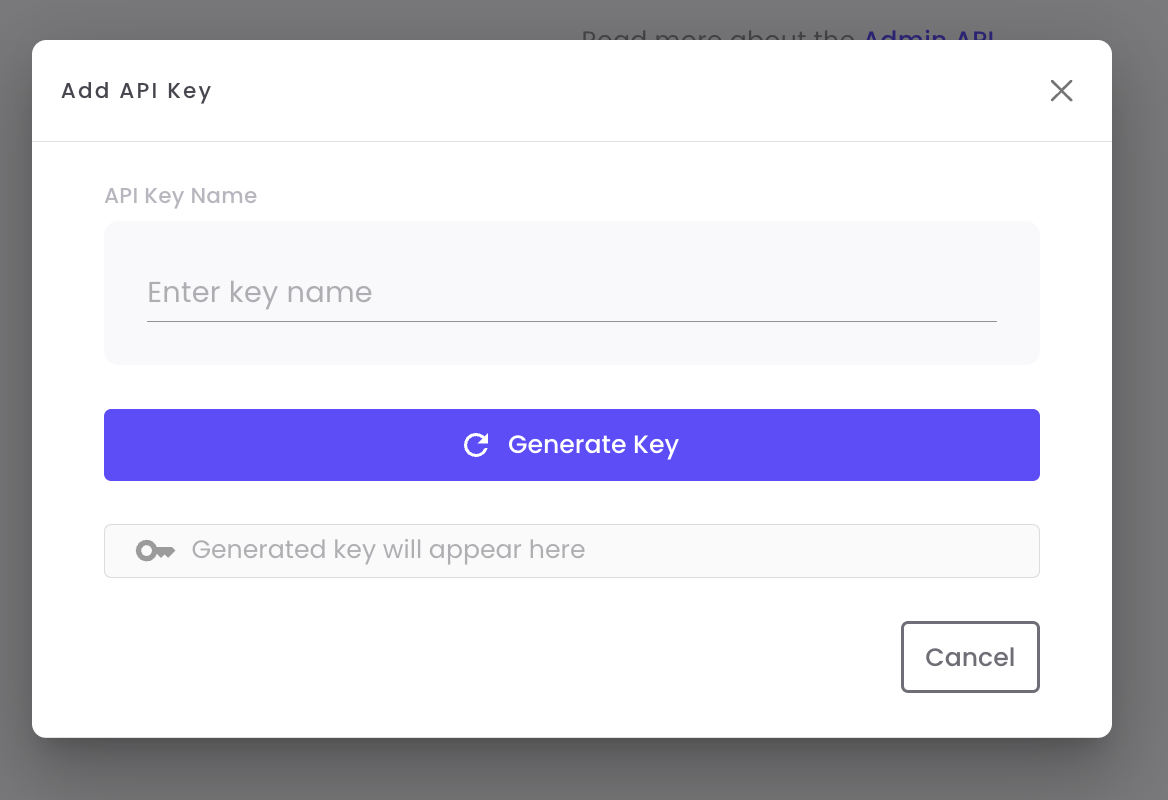 Give your API key a descriptive name
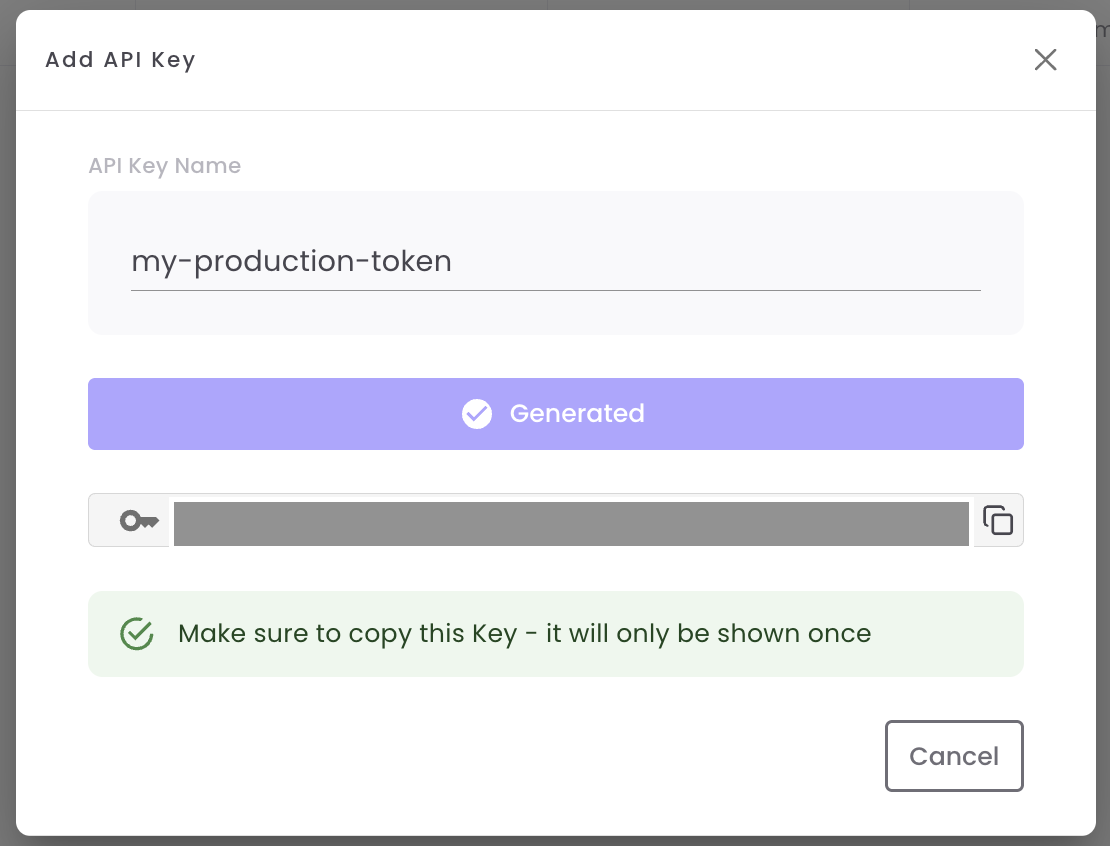
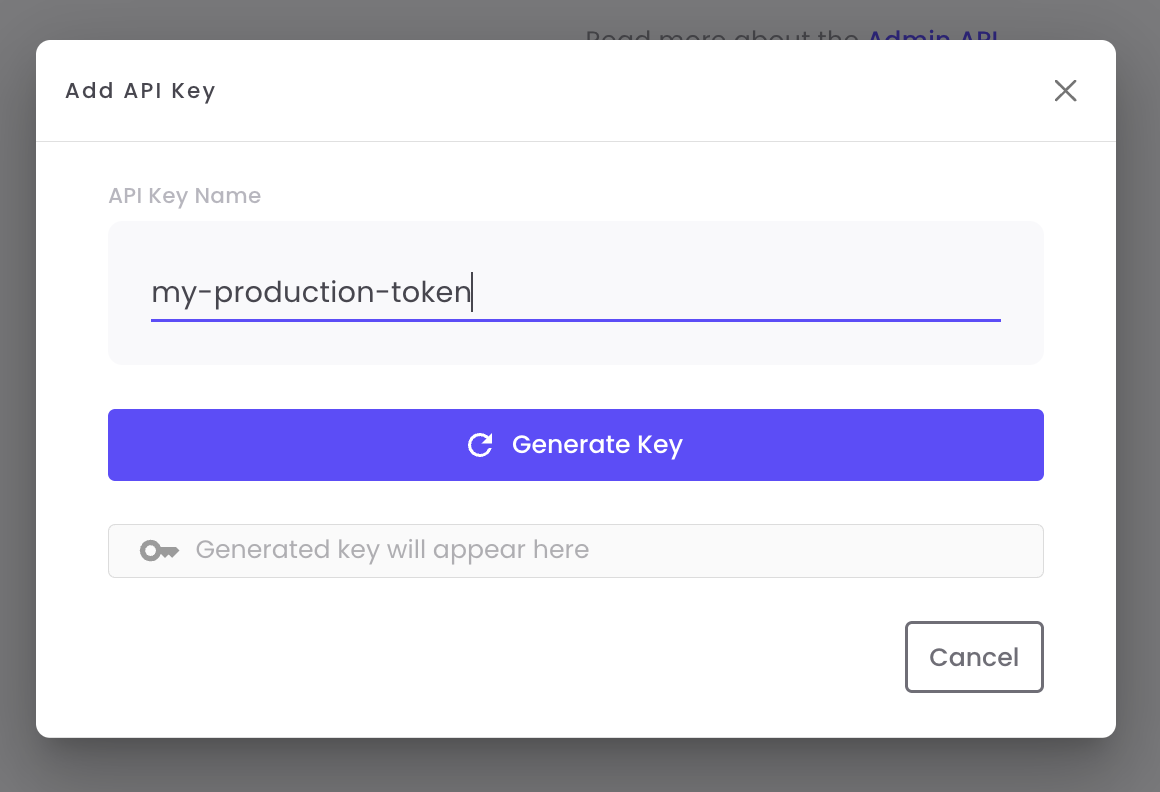 **Important**: Your API key will only be displayed once. Make sure to copy it immediately and store it securely.
Click **Copy** to save your API key to clipboard
**Important**: Your API key will only be displayed once. Make sure to copy it immediately and store it securely.
Click **Copy** to save your API key to clipboard
 ### Managing API Keys
Once created, you can view and manage all your API keys from the API Keys dashboard.
### Managing API Keys
Once created, you can view and manage all your API keys from the API Keys dashboard.
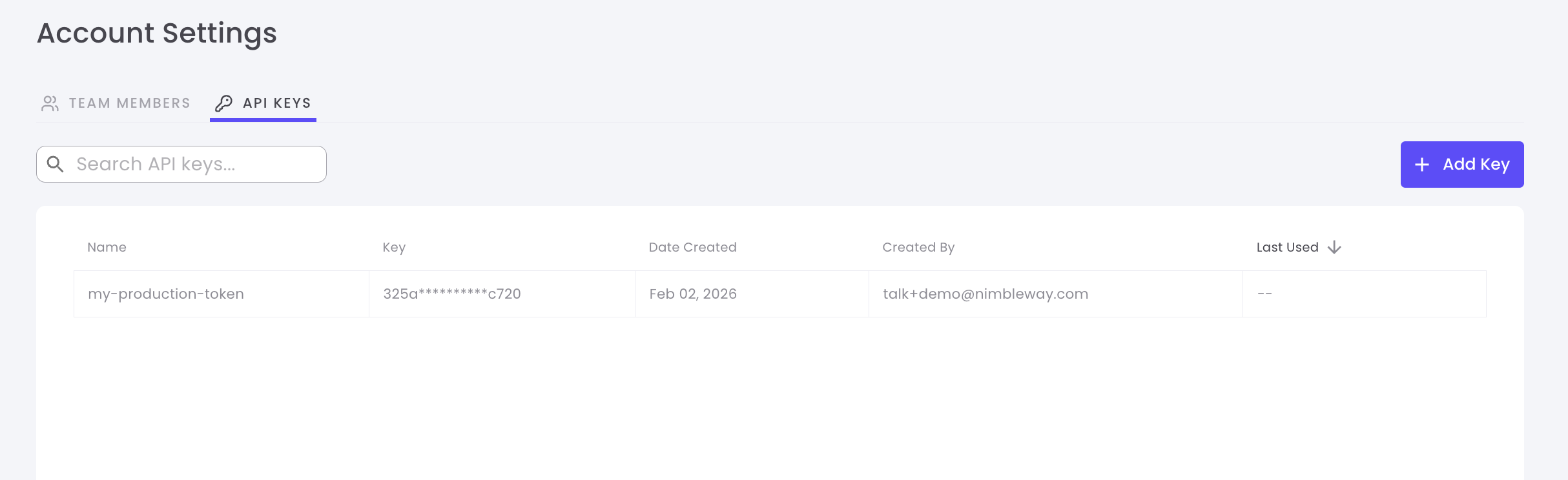 #### API Key Information
Each API key displays the following information:
| Column | Description |
| -------------- | --------------------------------------------------- |
| **Name** | The descriptive name you gave to the key |
| **Created** | Date and time when the key was created |
| **Created By** | The team member who created the key |
| **Last Used** | Most recent date the key was used in an API request |
| **Actions** | Delete or manage the key |
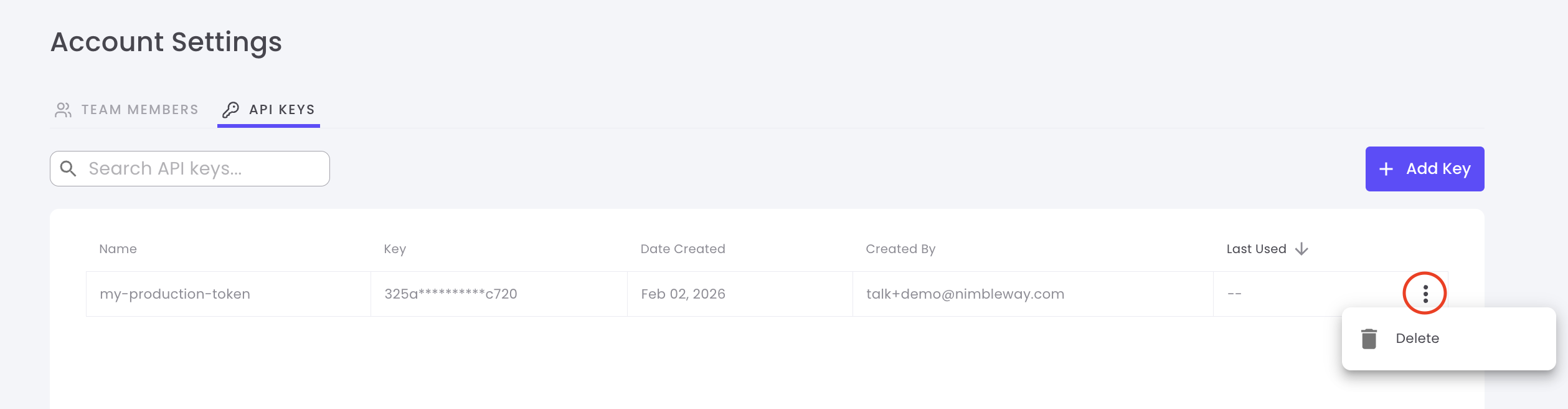
### Delete an API Key
Deleting an API key is permanent and cannot be undone. Any applications using this key will immediately lose access.
To delete an API key:
1. Locate the key you want to delete in the list
2. Click the **Delete** button or trash icon
3. Confirm the deletion in the popup dialog
#### API Key Information
Each API key displays the following information:
| Column | Description |
| -------------- | --------------------------------------------------- |
| **Name** | The descriptive name you gave to the key |
| **Created** | Date and time when the key was created |
| **Created By** | The team member who created the key |
| **Last Used** | Most recent date the key was used in an API request |
| **Actions** | Delete or manage the key |
### Delete an API Key
Deleting an API key is permanent and cannot be undone. Any applications using this key will immediately lose access.
To delete an API key:
1. Locate the key you want to delete in the list
2. Click the **Delete** button or trash icon
3. Confirm the deletion in the popup dialog
 ### Best Practices
Name keys based on their purpose or environment
Create new keys periodically and delete old ones to maintain security
Use separate API keys for different services to track usage and limit exposure
Keep API keys confidential and never commit them to version control
Monitor the "Last Used" column to identify and remove unused API keys
***
## Team Members
Collaborate with your team by inviting members to your Nimble account. Control access levels and manage permissions all in one place.
### Invite Team Members
In Account Settings, click on the **Team Members** tab
### Best Practices
Name keys based on their purpose or environment
Create new keys periodically and delete old ones to maintain security
Use separate API keys for different services to track usage and limit exposure
Keep API keys confidential and never commit them to version control
Monitor the "Last Used" column to identify and remove unused API keys
***
## Team Members
Collaborate with your team by inviting members to your Nimble account. Control access levels and manage permissions all in one place.
### Invite Team Members
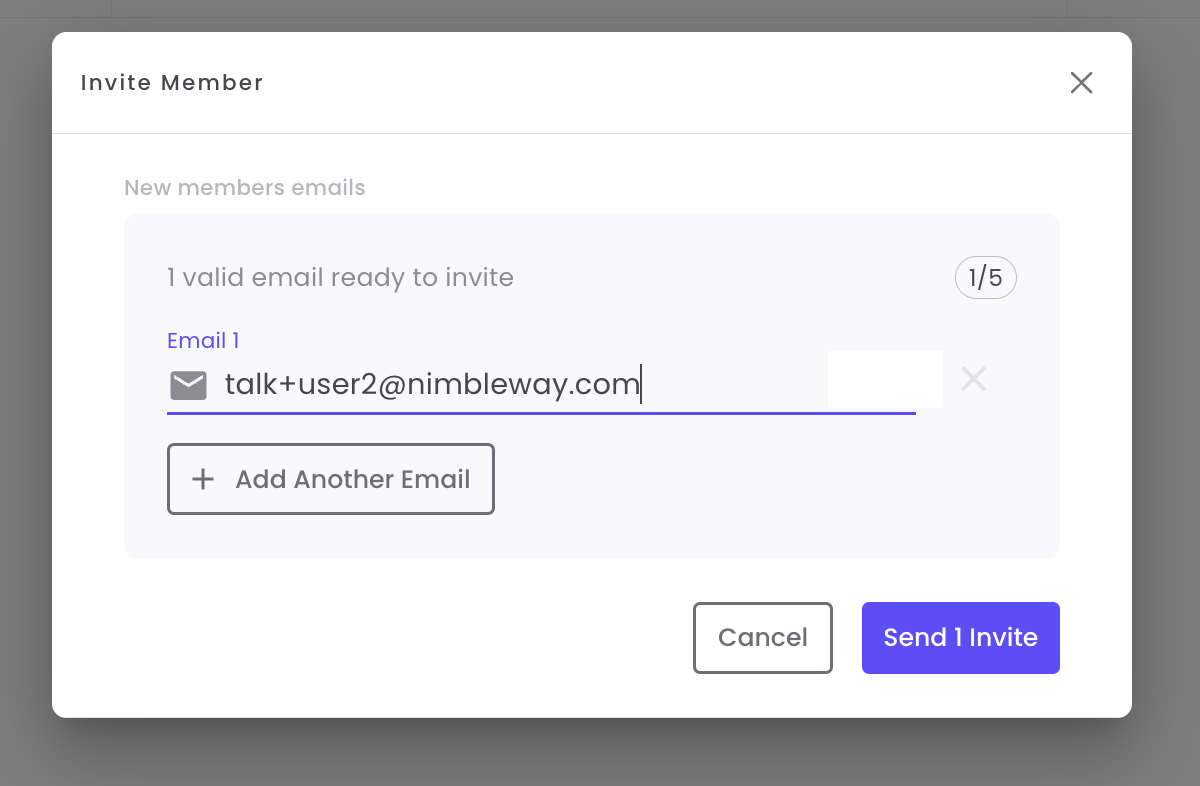
In Account Settings, click on the **Team Members** tab
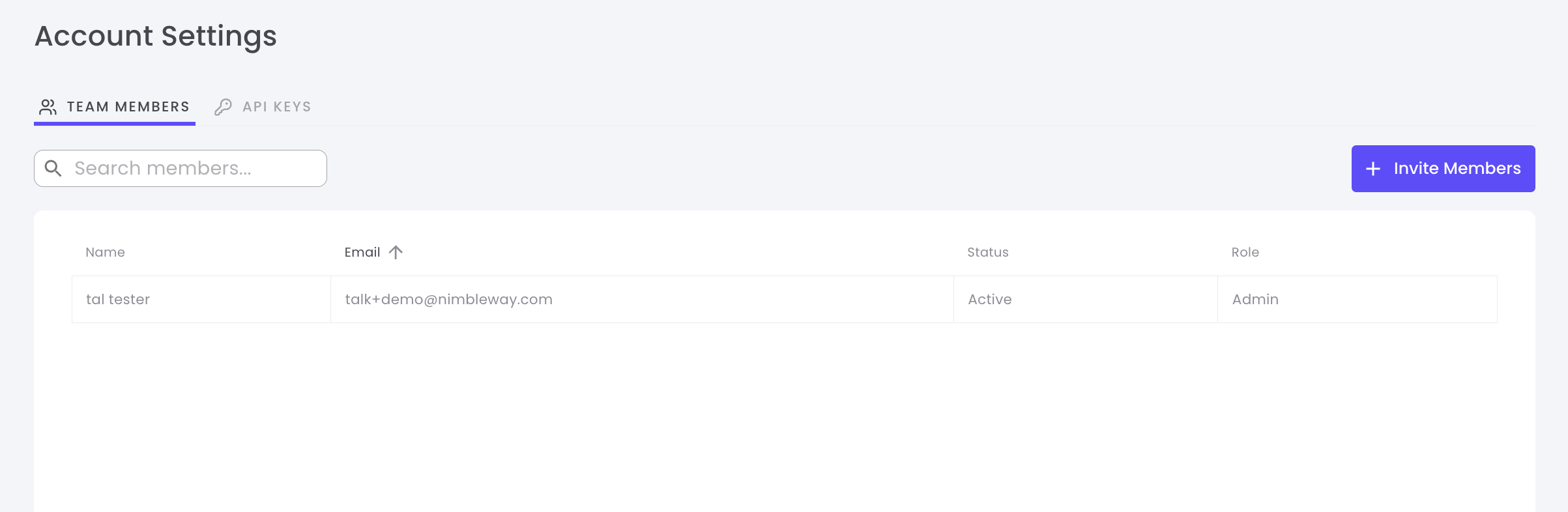 Click the **Invite Team Member** button
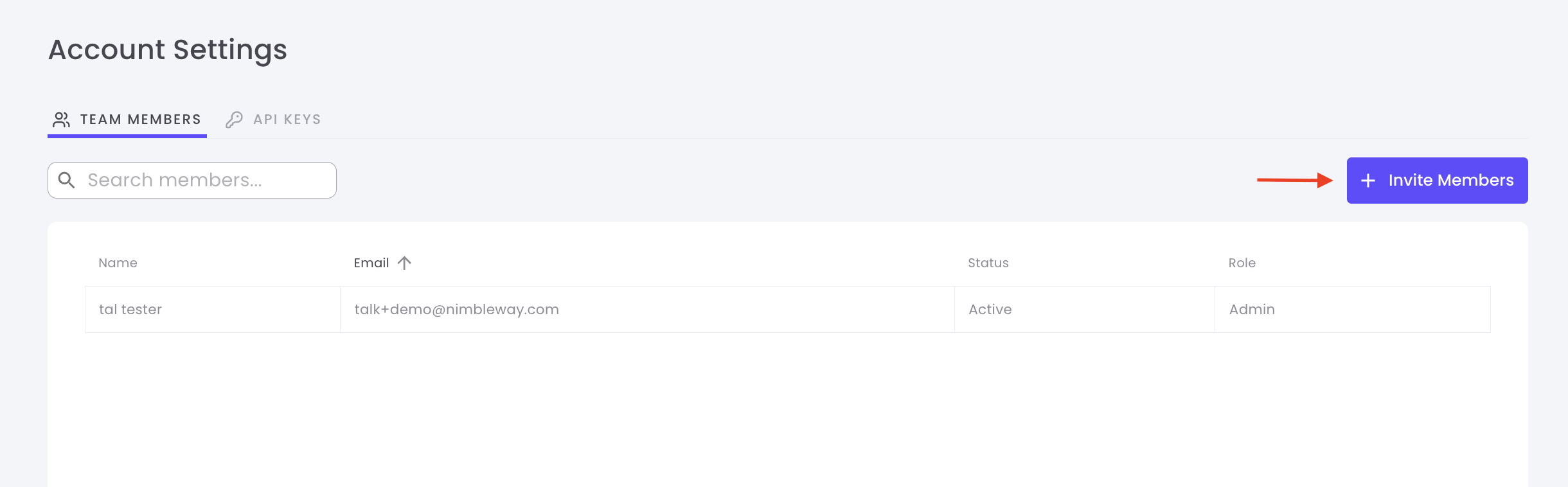 Type the email address of the person you want to invite
Click **Send Invite** - they'll receive an email with instructions to join
Type the email address of the person you want to invite
Click **Send Invite** - they'll receive an email with instructions to join
 ### Managing Team Members
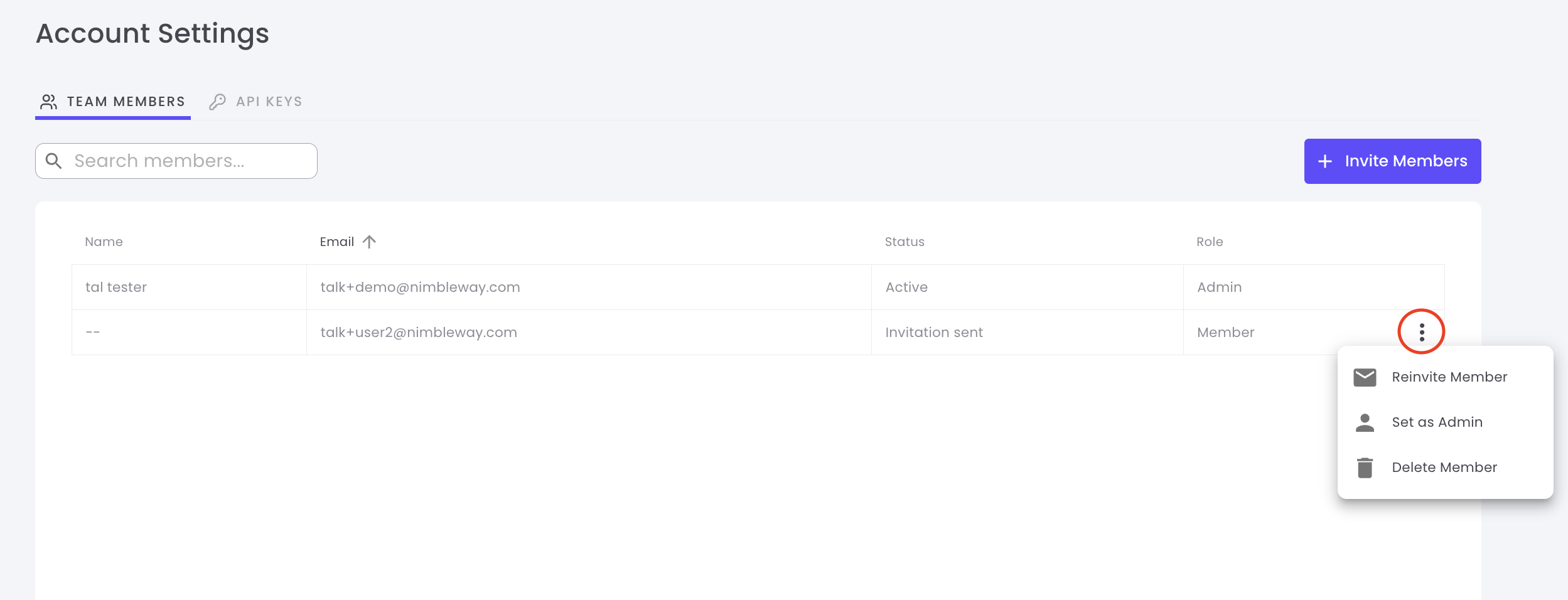
View and manage all team members from the Team Members dashboard.
### Managing Team Members
View and manage all team members from the Team Members dashboard.
 #### Team Member Information
| Column | Description |
| ----------- | -------------------------------------- |
| **Name** | Team member's full name |
| **Email** | Associated email address |
| **Role** | Permission level (Member or Admin) |
| **Status** | Active, Pending, or Invited |
| **Joined** | Date when they accepted the invitation |
| **Actions** | Change role or remove member |
### Change Member Role
Promote members to admins or revoke admin privileges:
1. Locate the team member in the list
2. Click the **Role** dropdown
3. Select **Admin** or **Member**
4. Changes take effect immediately
Admins have full access to account settings, billing, API keys, and team management
### Remove Team Members
To remove a team member from your account:
1. Find the member in the team list
2. Click the **Remove** button or trash icon
3. Confirm the removal
Removed members will immediately lose access to your account and all its resources
### Permission Levels
**Members can:**
* Use existing API keys
* View usage statistics
* Access documentation
* Make API requests
**Members cannot:**
* Create or delete API keys
* Invite or remove team members
* Access billing information
* Change account settings
**Admins can:**
* Everything Members can do
* Create and delete API keys
* Invite and remove team members
* Promote/demote member roles
* Access billing and payment information
* Modify account settings
**Full account control with no restrictions**
### Team Collaboration Tips
Create unique API keys for each team member to track individual usage and maintain accountability
Only promote trusted team members to admin roles to maintain account security
Encourage team members to use clear names when creating API keys
Periodically review team members and API keys to remove unused accounts
***
## Security Best Practices
* Never commit API keys to version control
* Use environment variables to store keys
* Rotate keys regularly (every 90 days recommended)
* Delete keys immediately if compromised
* Use separate keys for development and production
* Grant minimum necessary permissions
* Remove access for departing team members immediately
* Use admin roles sparingly
* Review team member list regularly
* Monitor API key usage patterns
* Check "Last Used" dates on API keys
* Review team member activity
* Set up alerts for unusual usage
* Track API consumption by key
* Audit changes to account settings
***
## Need Help?
Learn how to use your API keys with our quickstart guide
Contact our support team for account assistance
Test & Explore the API effortleslly, no code is needed
#### Team Member Information
| Column | Description |
| ----------- | -------------------------------------- |
| **Name** | Team member's full name |
| **Email** | Associated email address |
| **Role** | Permission level (Member or Admin) |
| **Status** | Active, Pending, or Invited |
| **Joined** | Date when they accepted the invitation |
| **Actions** | Change role or remove member |
### Change Member Role
Promote members to admins or revoke admin privileges:
1. Locate the team member in the list
2. Click the **Role** dropdown
3. Select **Admin** or **Member**
4. Changes take effect immediately
Admins have full access to account settings, billing, API keys, and team management
### Remove Team Members
To remove a team member from your account:
1. Find the member in the team list
2. Click the **Remove** button or trash icon
3. Confirm the removal
Removed members will immediately lose access to your account and all its resources
### Permission Levels
**Members can:**
* Use existing API keys
* View usage statistics
* Access documentation
* Make API requests
**Members cannot:**
* Create or delete API keys
* Invite or remove team members
* Access billing information
* Change account settings
**Admins can:**
* Everything Members can do
* Create and delete API keys
* Invite and remove team members
* Promote/demote member roles
* Access billing and payment information
* Modify account settings
**Full account control with no restrictions**
### Team Collaboration Tips
Create unique API keys for each team member to track individual usage and maintain accountability
Only promote trusted team members to admin roles to maintain account security
Encourage team members to use clear names when creating API keys
Periodically review team members and API keys to remove unused accounts
***
## Security Best Practices
* Never commit API keys to version control
* Use environment variables to store keys
* Rotate keys regularly (every 90 days recommended)
* Delete keys immediately if compromised
* Use separate keys for development and production
* Grant minimum necessary permissions
* Remove access for departing team members immediately
* Use admin roles sparingly
* Review team member list regularly
* Monitor API key usage patterns
* Check "Last Used" dates on API keys
* Review team member activity
* Set up alerts for unusual usage
* Track API consumption by key
* Audit changes to account settings
***
## Need Help?
Learn how to use your API keys with our quickstart guide
Contact our support team for account assistance
Test & Explore the API effortleslly, no code is needed