

Accessing Settings
Navigate to your settings at online.nimbleway.com:- Log in with your username and password
- Find the Settings section in the left sidebar
- Select API Keys or Billing
API Keys
API keys are used to authenticate your requests to the Nimble API. Each key is unique and should be kept secure.Generate Your First API Key
1
Navigate to API Keys
Under Settings in the left sidebar, select API Keys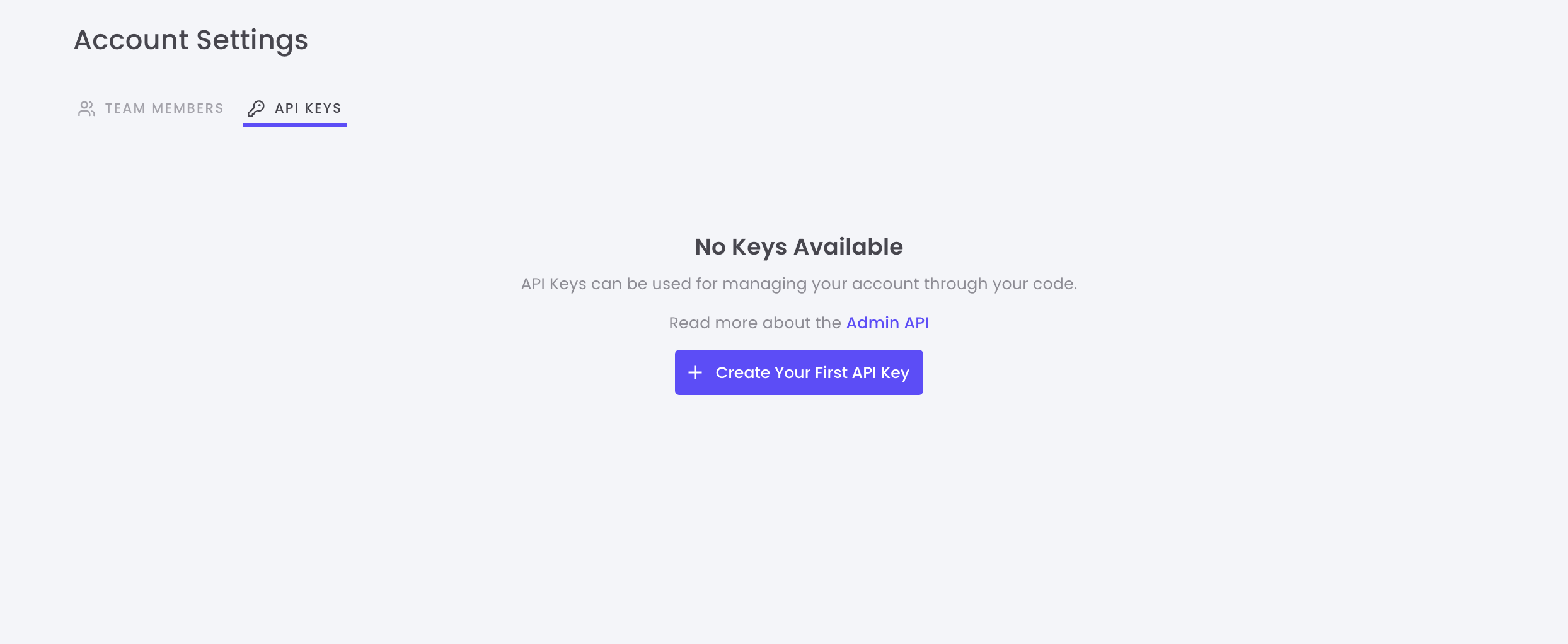
2
Create New Key
Click Create key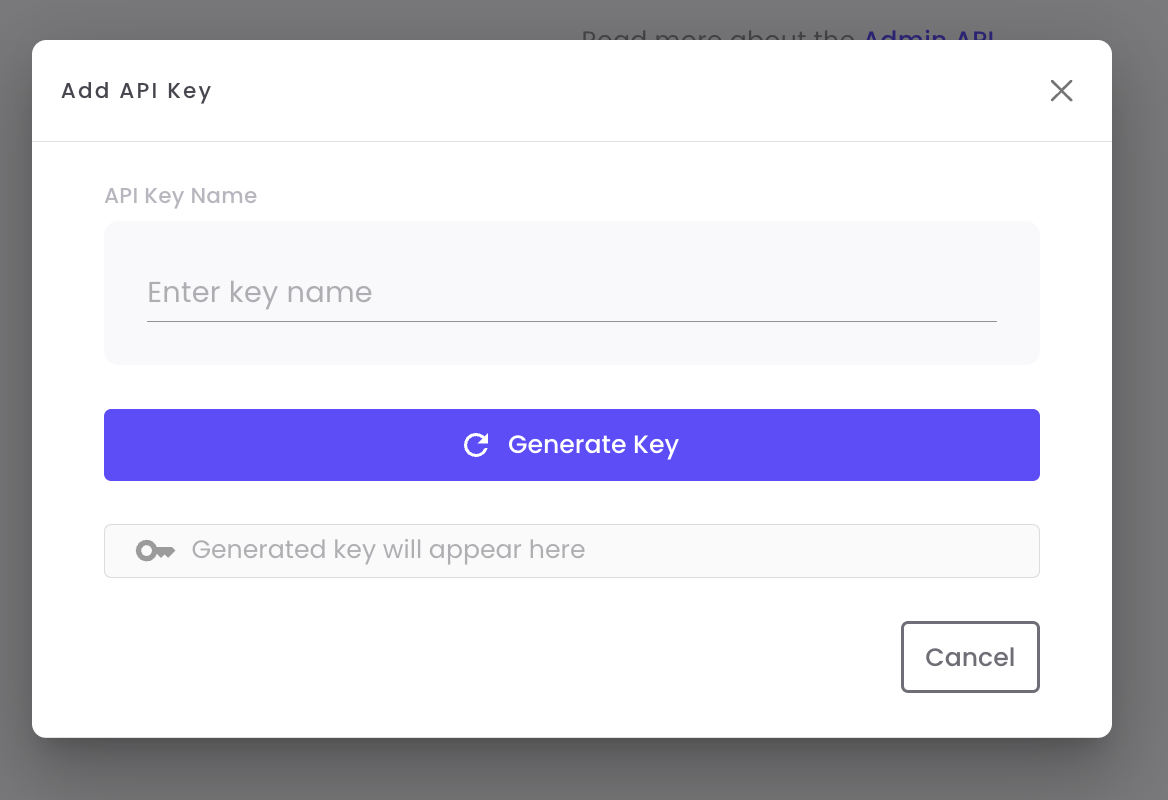
3
Name Your Key
Give your API key a descriptive name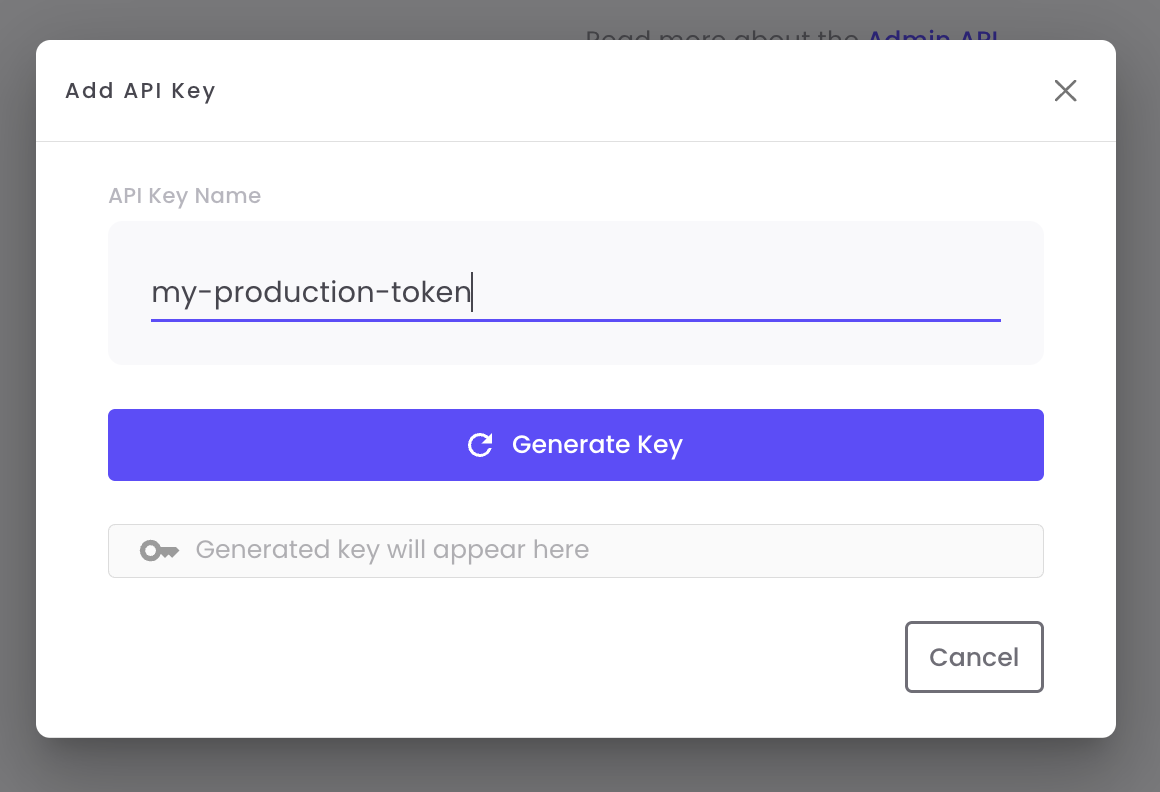
4
Copy Your Key
Click Copy to save your API key to clipboard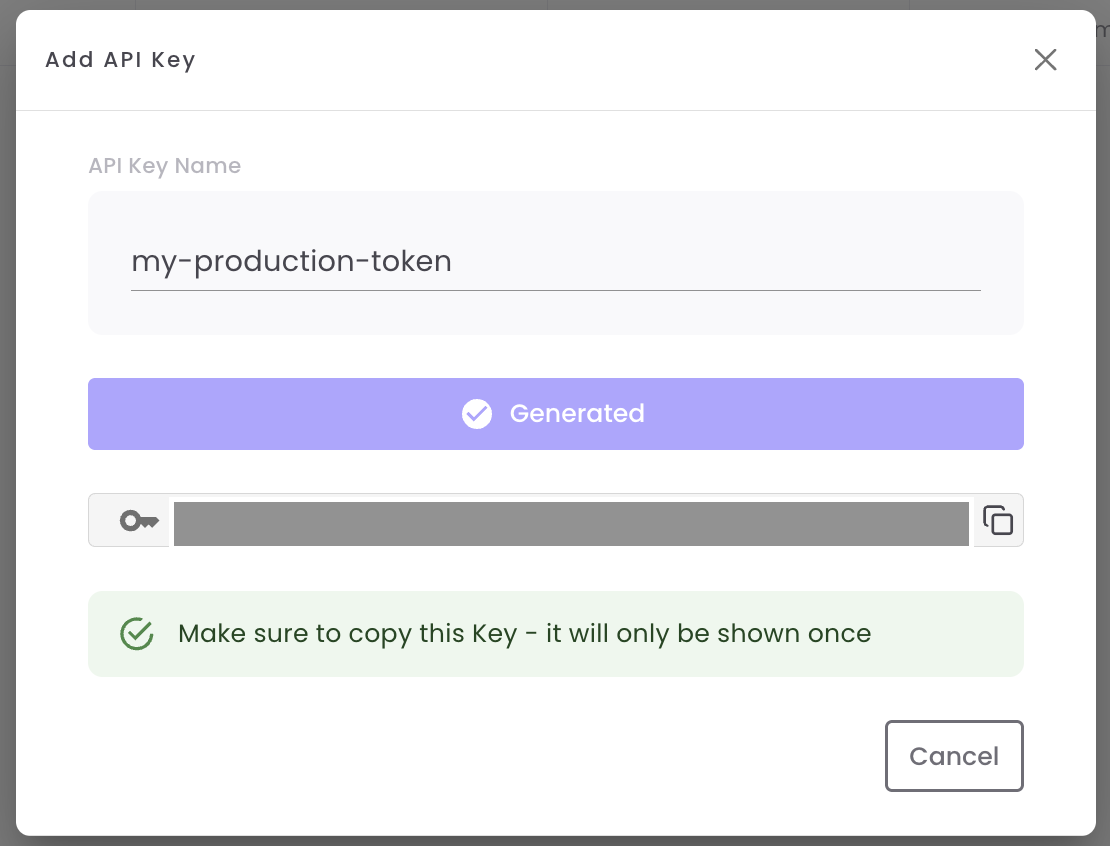
Managing API Keys
Once created, you can view and manage all your API keys from the API Keys dashboard.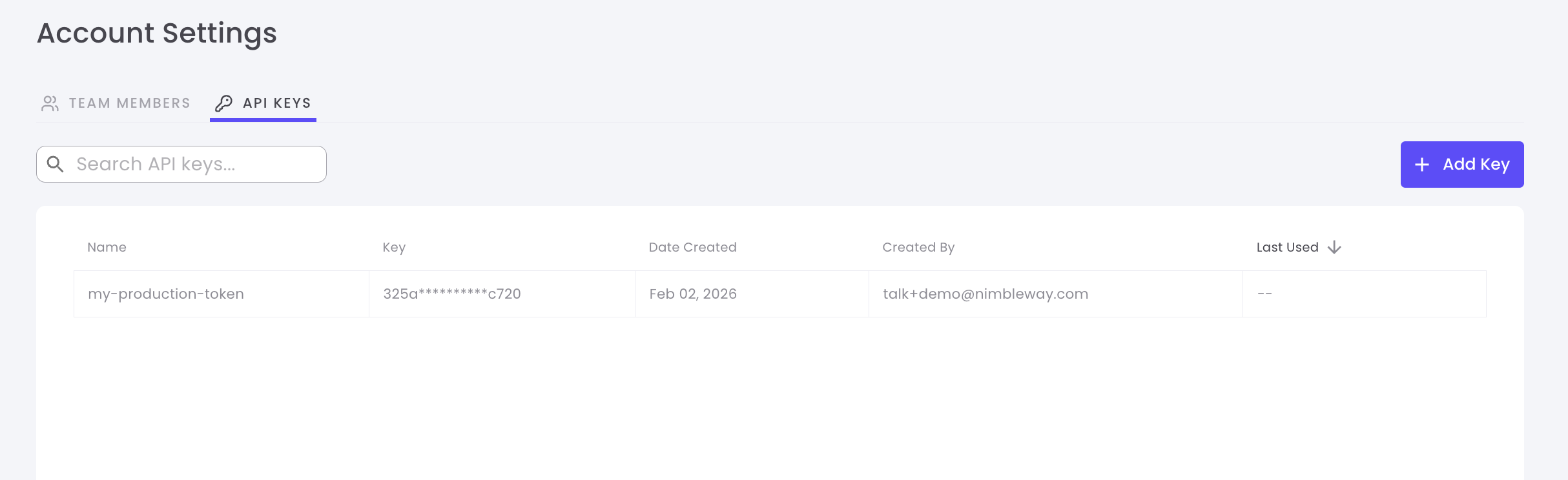
API Key Information
Each API key displays the following information:Delete an API Key
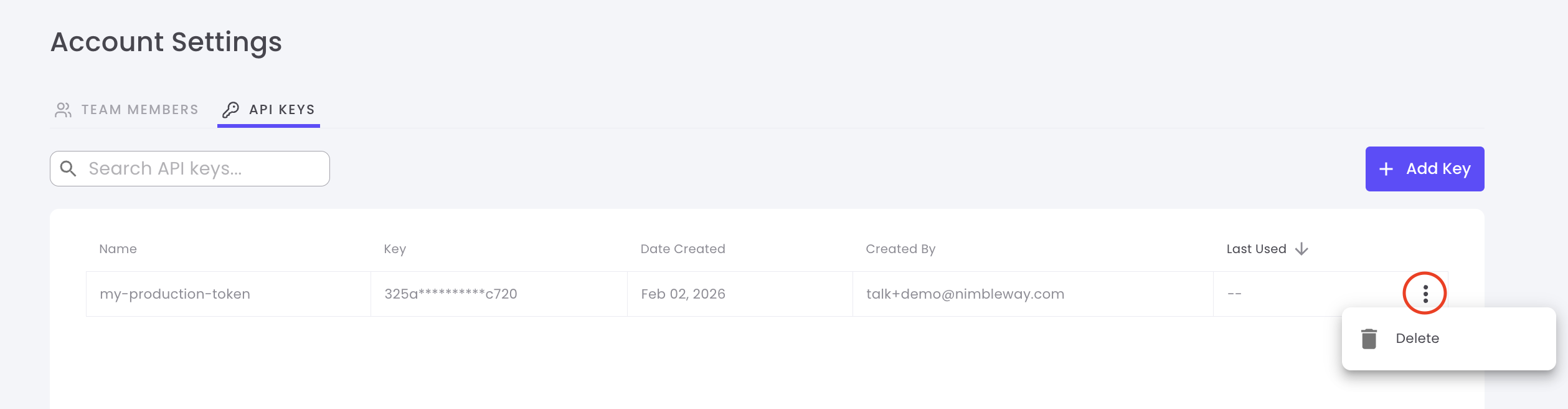
To delete an API key:- Locate the key you want to delete in the list
- Click the Delete button or trash icon
-
Confirm the deletion in the popup dialog
Best Practices
Use Descriptive Names
Name keys based on their purpose or environment
Rotate Keys Regularly
Create new keys periodically and delete old ones to maintain security
One Key Per Service
Use separate API keys for different services to track usage and limit exposure
Never Share Keys
Keep API keys confidential and never commit them to version control
Track Usage by API Key
When each service uses its own API key, the Usage Dashboard can show how much each key used. Use it to see which service or integration drives your usage and cost.1
Open the Usage Dashboard
Under Account in the left sidebar, select Usage Dashboard, then open the Overview tab.
2
Choose a service
Select Nimble API or Web Search Agents. Usage by API key is available for these two services.
3
Split the chart by API key
In the activity chart, click Split by API key. The chart draws one line per API key.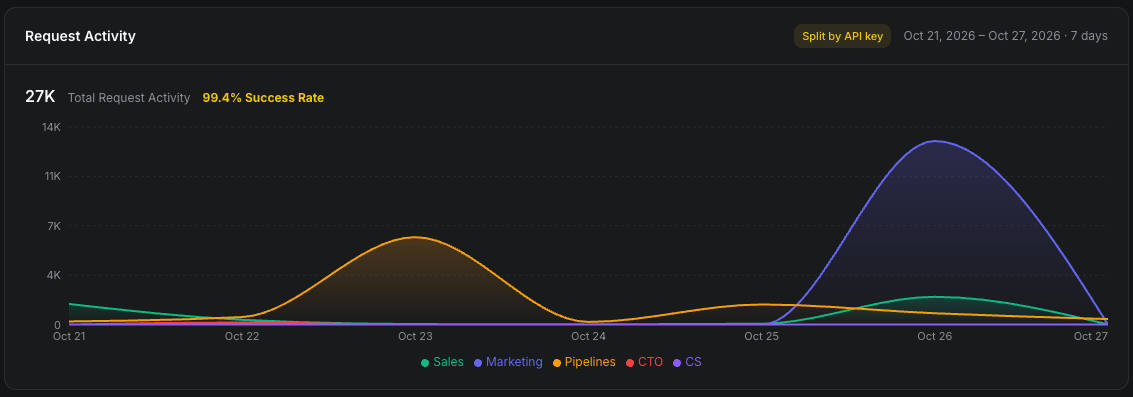
- The 5 keys with the most usage each get their own line. All other keys are grouped as Other keys.
- A deleted key appears as Deleted key (…), followed by the start of its ID.
- Usage not made with an API key, such as requests from the dashboard, appears as Not via API key. Usage recorded before per-key tracking started appears there too.
- The All API keys filter limits the chart to the keys you select.
- The headline total and success rate stay the same. Only the chart lines change.
The API key split and the Service Rates split can’t be used together. Turning one on turns the other off.
Guardrails
Ensure your guardrails apply to every Search request automatically. Set them once for your whole account or a single API key, and they apply even when the caller never sends them.
Use an account-level control to enforce a policy for everyone on the account. Use an API key-level control when only one service or integration needs it, for example a consumer-facing app that must always use
strict.
1
Request a control
Contact Sales or your account executive with the control, its value, and whether it applies to the account or to specific API keys. Share the API key name, never the key itself.
2
Check it is applied
Send a Search request without
safe_search. The response’s top-level safe_search field shows the level that was applied, for example "safe_search": "strict".Team Members
Collaborate with your team by inviting members to your Nimble account. Control access levels and manage permissions all in one place.Invite Team Members
1
Navigate to Team Tab
In the dashboard, open Team Members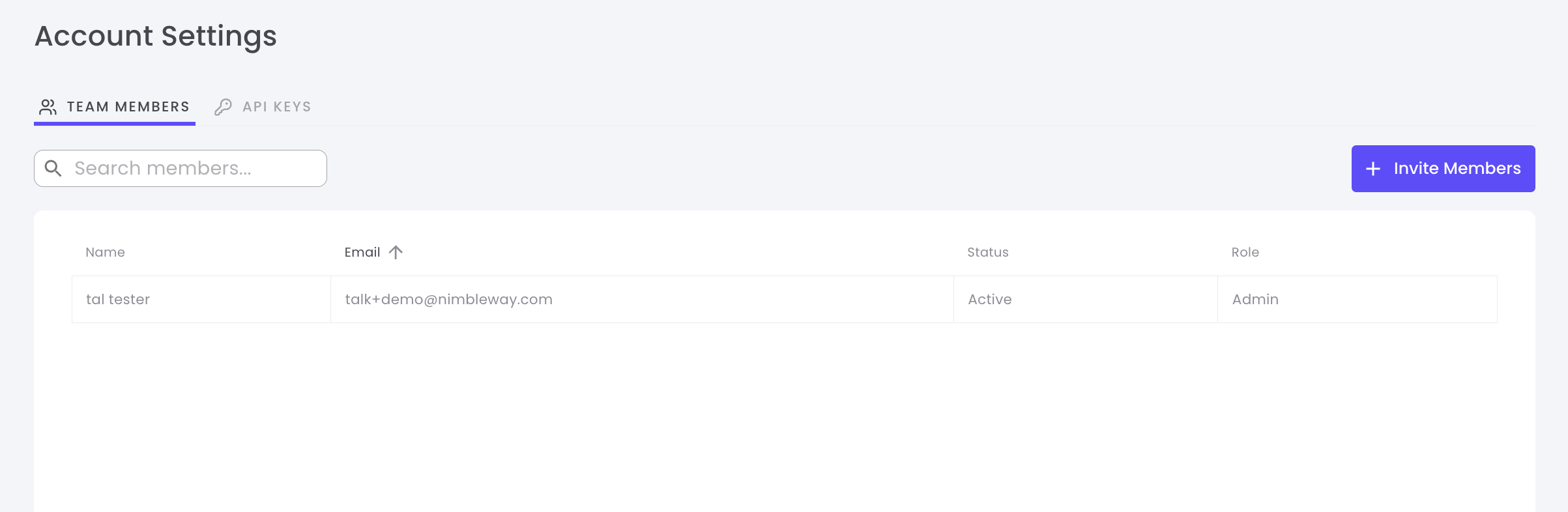
2
Invite New Member
Click the Invite Team Member button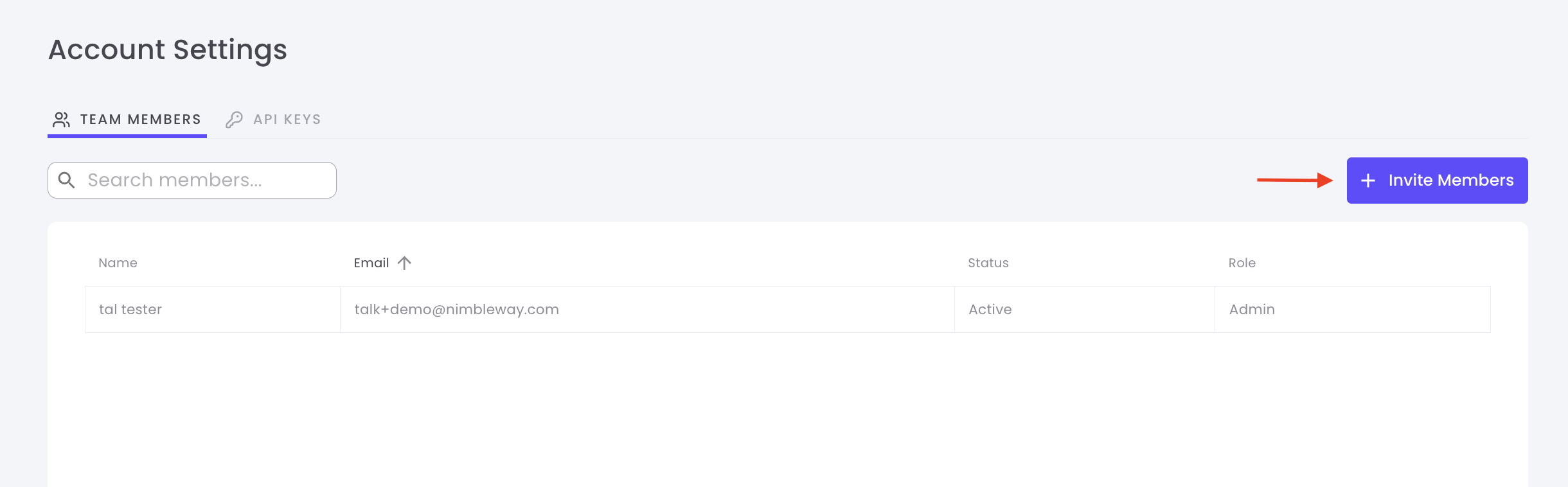
3
Enter Email Address and Send Invitation
Type the email address of the person you want to inviteClick Send Invite - they’ll receive an email with instructions to join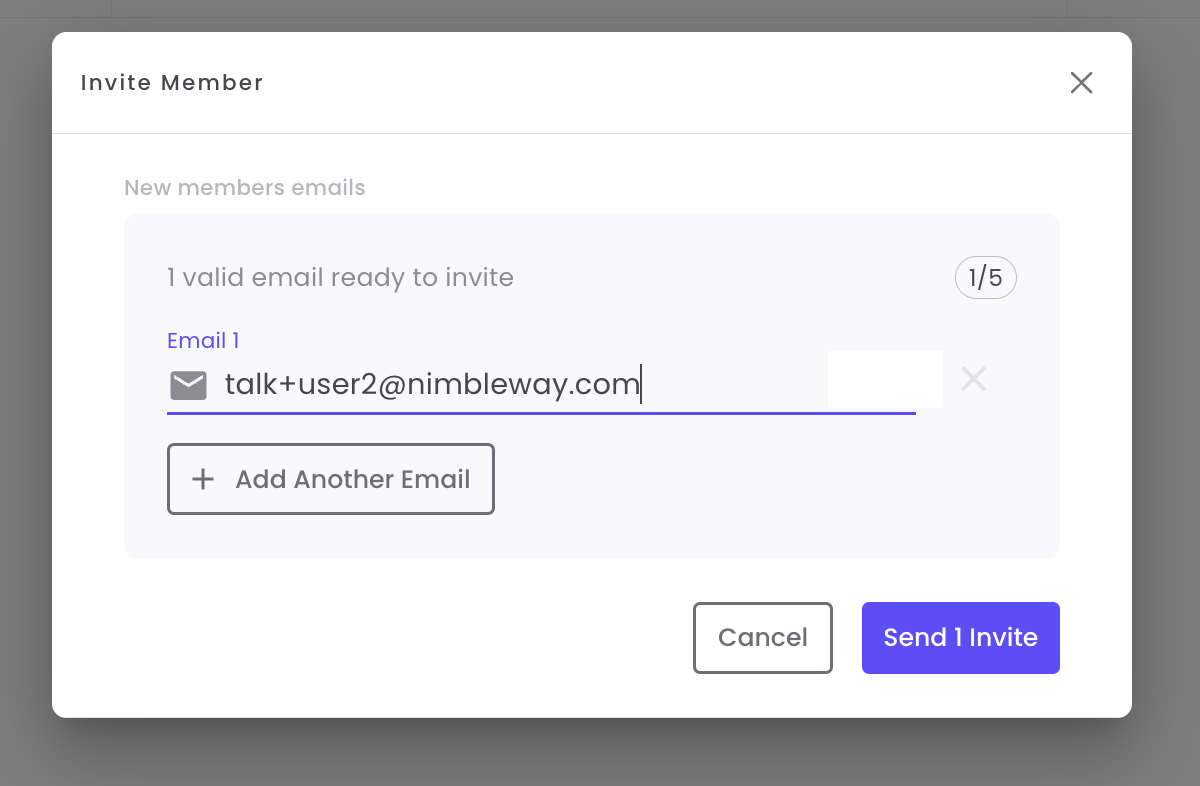
Managing Team Members
View and manage all team members from the Team Members dashboard.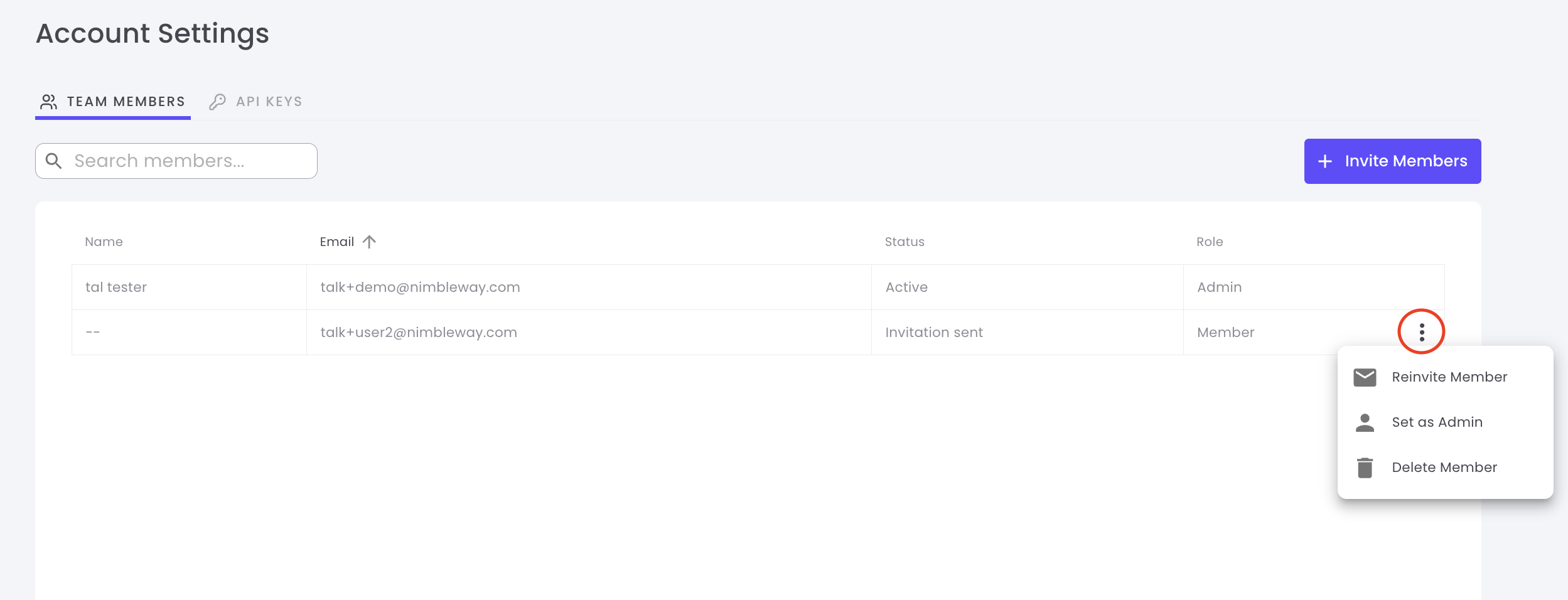
Team Member Information
Change Member Role
Promote members to admins or revoke admin privileges:- Locate the team member in the list
- Click the Role dropdown
- Select Admin or Member
- Changes take effect immediately
Admins have full access to account settings, billing, API keys, and team management
Remove Team Members
To remove a team member from your account:- Find the member in the team list
- Click the Remove button or trash icon
- Confirm the removal
Permission Levels
Member
Member
Members can:
- Use existing API keys
- View usage statistics
- Access documentation
- Make API requests
- Create or delete API keys
- Invite or remove team members
- Access billing information
- Change account settings
Admin
Admin
Admins can:
- Everything Members can do
- Create and delete API keys
- Invite and remove team members
- Promote/demote member roles
- Access billing and payment information
- Modify account settings
Team Collaboration Tips
Separate API Keys
Create unique API keys for each team member to track individual usage and maintain accountability
Limit Admin Access
Only promote trusted team members to admin roles to maintain account security
Use Descriptive Names
Encourage team members to use clear names when creating API keys
Regular Audits
Periodically review team members and API keys to remove unused accounts
Security Best Practices
Protect Your API Keys
Protect Your API Keys
- Never commit API keys to version control
- Use environment variables to store keys
- Rotate keys regularly (every 90 days recommended)
- Delete keys immediately if compromised
- Use separate keys for development and production
Manage Team Access
Manage Team Access
- Grant minimum necessary permissions
- Remove access for departing team members immediately
- Use admin roles sparingly
- Review team member list regularly
- Monitor API key usage patterns
Monitor Account Activity
Monitor Account Activity
- Check “Last Used” dates on API keys
- Review team member activity
- Set up alerts for unusual usage
- Track API consumption by key
- Audit changes to account settings
Need Help?
Documentation
Learn how to use your API keys with our quickstart guide
Support
Contact our support team for account assistance
Playground
Test & Explore the API effortleslly, no code is needed