Install Nimble MCP from Azure MCP Center and use it in VS Code with GitHub Copilot Agent Mode
Nimble MCP is an officially onboarded partner on Azure MCP Center — Microsoft’s curated registry of enterprise-ready MCP servers, powered by Azure API Center. Install with one click into VS Code, sign in with OAuth, and use Nimble’s full web data toolkit in GitHub Copilot Agent Mode. No API key to paste.
Nimble MCP on Azure MCP Center — install in VS Code in seconds
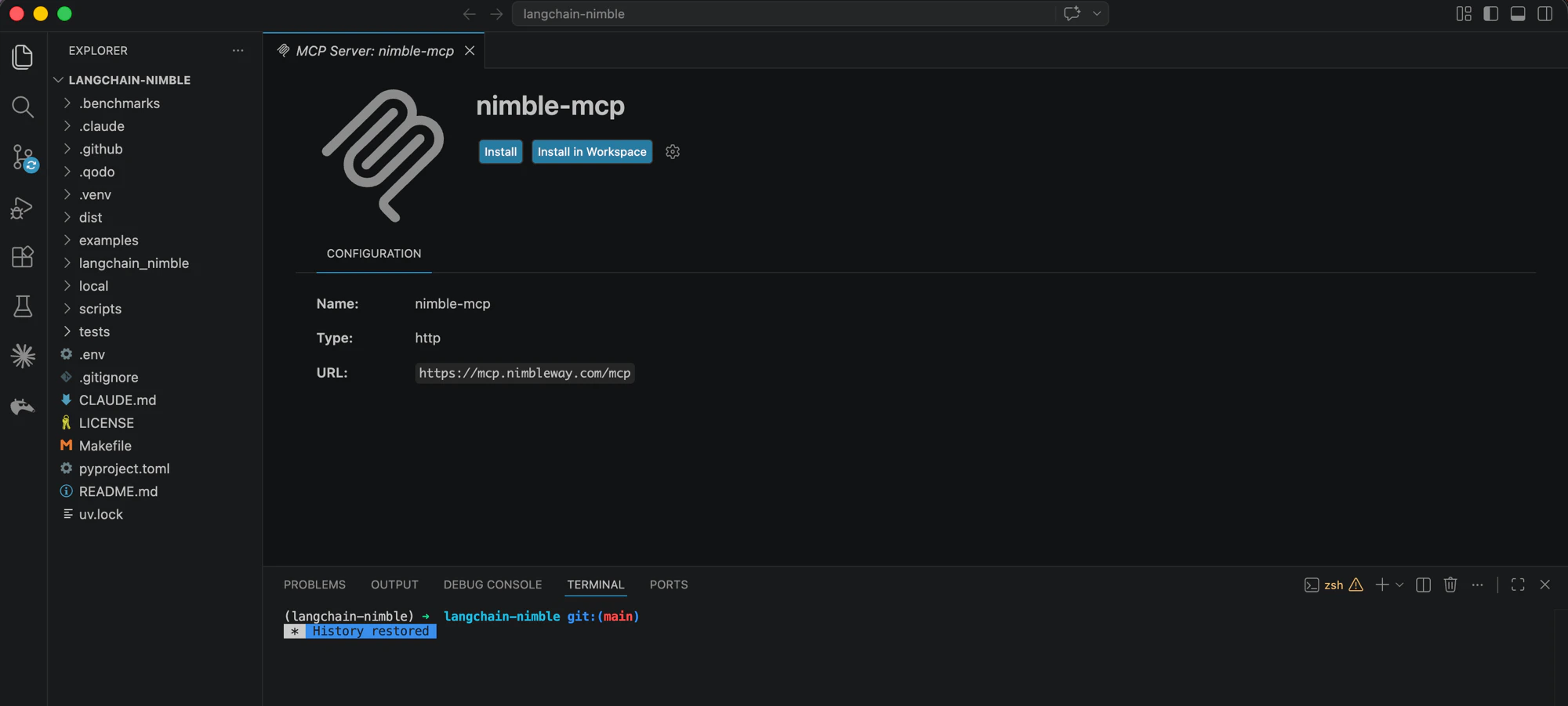
The button launches VS Code and prompts to add Nimble MCP to your settings.
Install Nimble MCP into VS Code
3
Sign in with OAuth
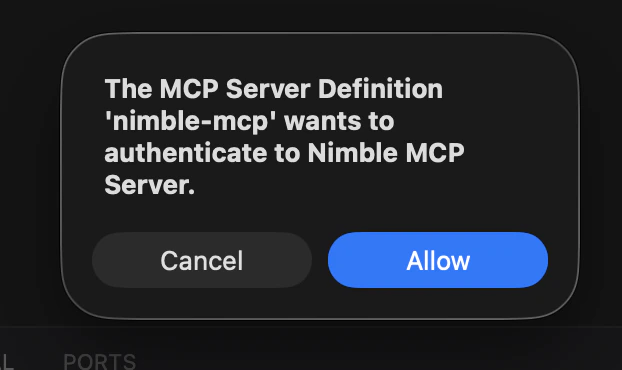
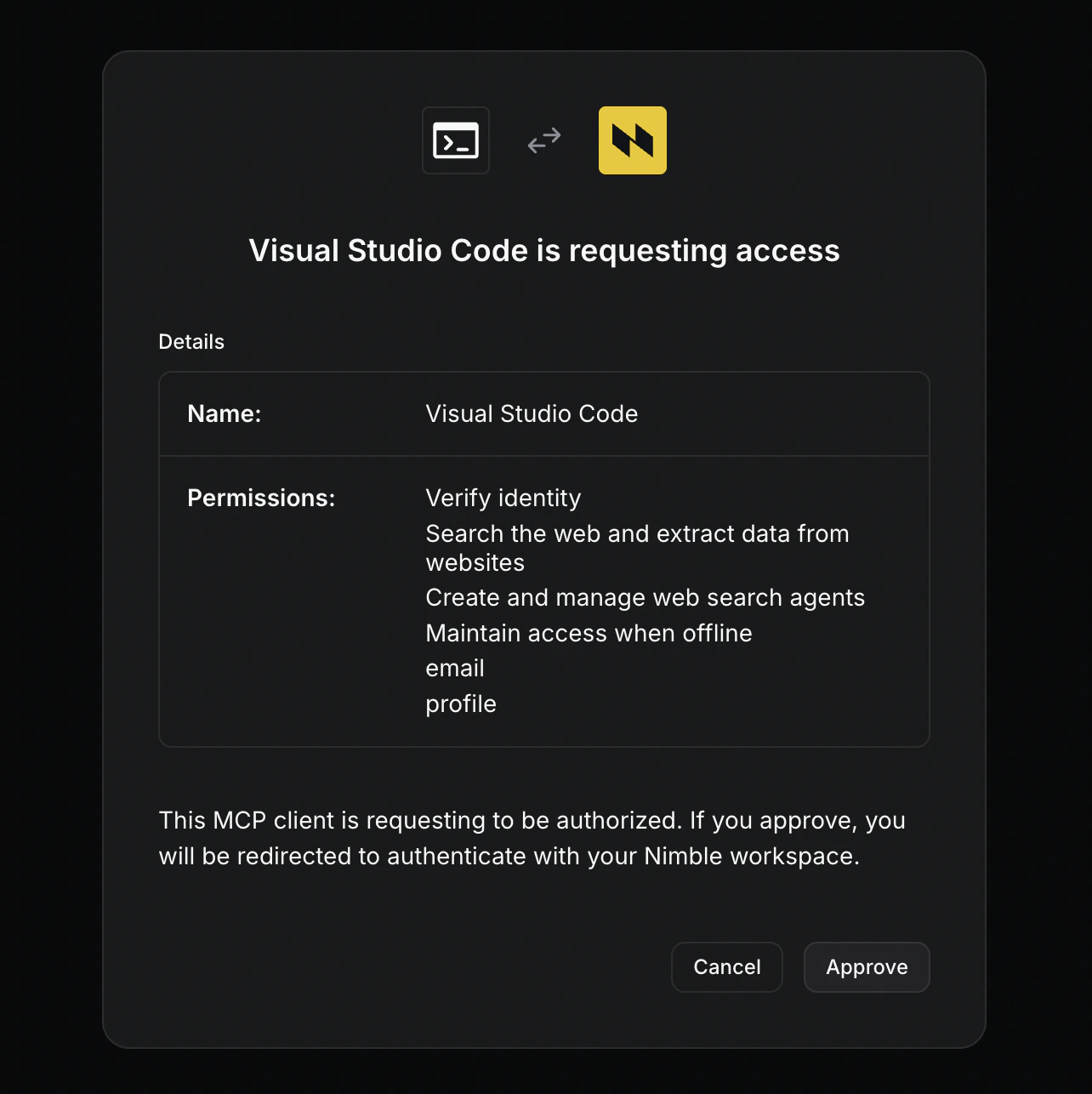
On first tool call, VS Code prompts to authenticate. Click Allow, then approve the requested scopes in the browser — VS Code stores the tokens and refreshes them automatically.
VS Code asks permission to authenticate with Nimble
OAuth consent screen with the scopes Nimble requests
4
Use Nimble in Copilot Chat
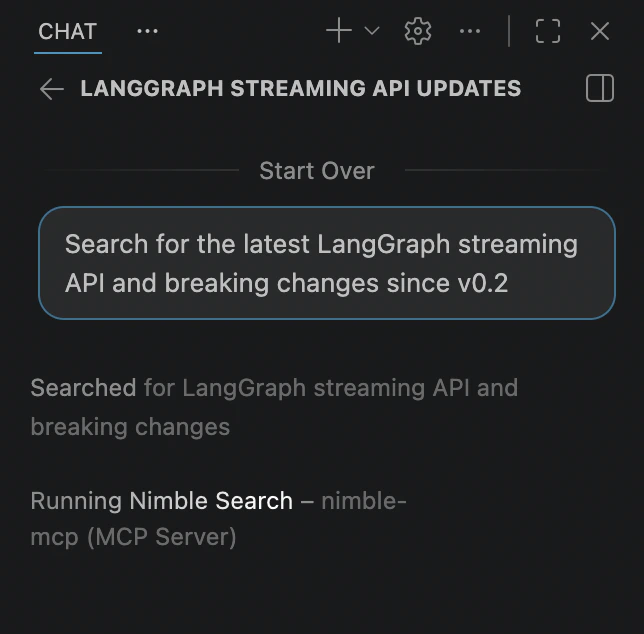
Open Copilot Chat → Agent Mode, click the tools icon, and confirm the Nimble tools appear in the list. Ask Copilot to search the web, extract a page, or map a site — Copilot picks the right Nimble tool and runs it.
Copilot Agent Mode running Nimble Search inside VS Code
Copilot is great at writing code — but its training cuts off, it doesn’t know your dependencies’ breaking changes, and it can’t see the third-party docs and live data your code actually has to work with. Web search and extraction close that gap across every stage of the dev loop:
Research before you build. Scope new features by searching real usage, competitor implementations, and current benchmarks — not stale snippets.
Ground technical planning in current docs. Pull the latest API surface for the libraries you depend on, not the version Copilot was trained on.
Pull real data into your tests. Extract live pages as clean JSON for fixtures, seed data, or generated types — no copy-paste, no mocks.
Build agents that need the web. Test the same Nimble MCP your shipped agent will use, directly in Copilot, before you commit it.
Paste any of these into Copilot Chat in Agent Mode — Copilot picks the right Nimble tool automatically. The flow follows a normal dev loop: research, plan, test, ship.
1. Research before you build
“I’m scoping a checkout flow. Search recent articles and extract the top 5 — summarize patterns, edge cases, and pitfalls before I write the spec.”
2. Plan with current docs
“Search for the latest LangGraph streaming API and breaking changes since v0.2, then update graph.ts to match.”
3. Test with real data
“Extract these 10 product URLs as clean JSON and save them to fixtures/products.json for my integration tests.”
4. Build agents that need the web
“I’m building a research agent in src/agent.ts. Use Nimble search and extract live so I can debug real responses, then wire the same MCP into the agent’s tool list.”
Enterprises with their own Azure API Center registry get Nimble MCP automatically — every new API Center surfaces the same official partner servers as mcp.azure.com. Expose Nimble to your developers alongside your internal MCP servers, optionally proxied through Azure API Management (AI Gateway) for centralized auth, rate limiting, and audit logging.